
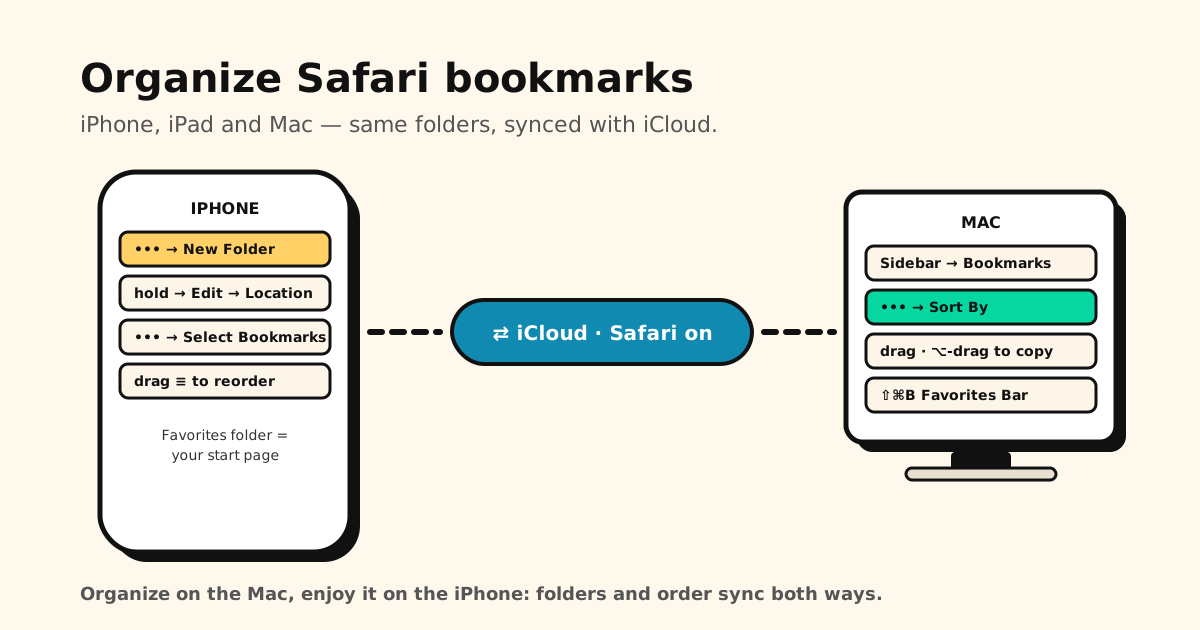
Quick answer: on iPhone or iPad, open Safari’s bookmarks, tap More (•••) → New Folder to make folders, touch and hold a bookmark → Edit → Location to move it, and More → Select Bookmarks to drag things into order. Safari on iPhone can’t sort alphabetically — but a Mac can (More → Sort By), and with iCloud on, the tidy result syncs back to your phone.
Below are the exact steps for each device, a folder system that stays tidy, and the limits you’ll hit anyway.
How to open your Safari bookmarks on iPhone
Safari’s layout changed in recent iOS versions, so the Bookmarks button depends on your tab layout (set in Settings → Apps → Safari → Tabs):
- Compact layout, iOS 27: open a new tab to get to the start page, then tap Show Bookmarks.
- Compact layout, iOS 26: there’s no book icon — tap More (•••) → Bookmarks.
- Bottom or Top layout: tap the Bookmarks (open book) icon in the toolbar.
Recently saved bookmarks, Favorites and Reading List items show at the top. Touch and hold any bookmark to open, copy, edit or delete it.
Create bookmark folders on iPhone
- In the bookmarks view, tap More (•••).
- Tap New Folder.
- Enter a name, then tap Save.
Name folders by what you’ll do with the links, not by topic. Read later, Recipes to try, Trip — Kyoto, Work tools beat Food, Travel, Misc — because when you open a folder, you’re in the mood for exactly that. Start with five or fewer; split one later if it gets too big.
Move a bookmark into a folder
- Touch and hold the bookmark.
- Tap Edit.
- Tap the field below Location and choose a folder.
- Tap Save.
The same Edit screen is where you rename a bookmark — worth doing, because Safari’s search only matches titles and addresses.
Reorder bookmarks and folders
- Tap More (•••) → Select Bookmarks.
- Touch and hold the reorder handle (≡) next to an item.
- Drag it up or down, or onto a folder.
To delete, touch and hold a bookmark and tap Delete. Clearing out dozens at once? Here’s how to bulk delete bookmarks.
Use Favorites for the sites you open daily
Favorites is a special folder: whatever’s inside appears on Safari’s start page, one tap away. Treat it like a home screen — five or six sites, not fifty. When you add a bookmark (••• next to the address bar → Add Bookmark to → choose a location → Save), pick Favorites as the location to put it there. With the Bottom or Top layout, touch and hold the book icon → Add Bookmark instead.
On iPhones with Apple Intelligence on newer iOS versions, Safari can also group related bookmarks and Reading List items into suggested topics automatically. Handy, but it doesn’t replace folders you chose yourself.
Organize Safari bookmarks on iPad
iPad uses the same tools — More → New Folder, touch and hold → Edit → Location, Select Bookmarks to reorder. The difference is where you open them: the sidebar gives you Bookmarks in one tap, which makes iPad a comfortable place for a big clean-up.
Organize (and sort) Safari bookmarks on a Mac
The Mac is the easiest place for heavy lifting, because you can drag freely and sort:
- In Safari, click the Sidebar button, then Bookmarks. (Or choose Bookmarks → Edit Bookmarks.)
- New folder: click More (•••) → New Folder, or Control-click in the sidebar → New Folder.
- Sort alphabetically: click More (•••), make sure Show Folders on Top is chosen, then Sort By and pick an order.
- Rearrange by hand: turn off Show Folders on Top and drag bookmarks and folders where you want them. Option-drag copies a bookmark instead of moving it.
- Favorites Bar: View → Show Favorites Bar (Shift+Cmd+B) puts your Favorites under the address bar.
Keep iPhone, iPad and Mac in sync with iCloud
Organize once and it shows up everywhere — as long as Safari sync is on:
- iPhone/iPad: Settings → [your name] → iCloud → See All → Safari on.
- Mac: Safari turned on in iCloud settings too, signed in to the same Apple Account.
That’s why the Mac sort trick works: sort on the Mac, and the alphabetized folders appear on your iPhone. Folders not showing up on the other device? Work through Safari bookmarks not syncing. Moving to a new iPhone? Here’s how to bring your bookmarks along.
Bookmarks vs Reading List
They look similar but do different jobs. Bookmarks are for pages you’ll come back to, and can live in folders. Reading List is a single queue of things to read once — no folders, no reordering. Mixing them is how people end up with two messy piles. More on making Reading List useful.
Where Safari bookmarks fall short
Folders help, but some limits don’t go away:
- One folder per bookmark. No tags, so a link can’t be both Recipes and This week.
- No notes. Nowhere to write why you saved something.
- Title-and-address search only. Forget the page’s name and it’s gone.
- Safari only. Links from TikTok, Instagram, Reddit, YouTube or a group chat don’t land in Safari bookmarks unless you open each one in Safari first.
For links from every app, not just Safari
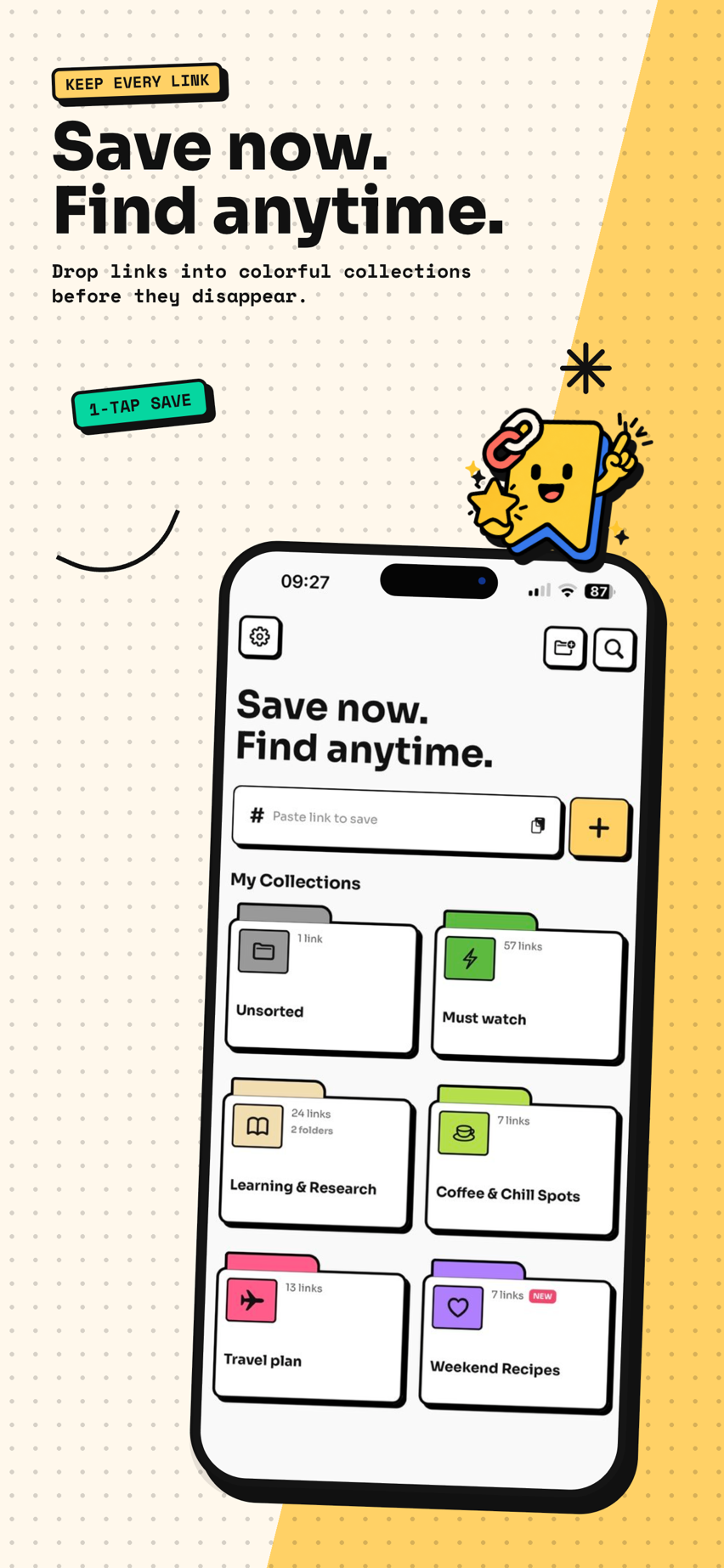
If most of what you save comes from apps, Tuckii is built for that. Share any link to it from the share sheet — Safari included — and it goes into a collection, with its title and preview fetched for you:
- Collections that work like the folders above, plus pinning for what you’re using right now.
- Search that also checks descriptions and your own notes, not just titles.
- No account, and your library stays on your iPhone. With Pro, iCloud Sync brings it to your iPad and Mac too — one tap on Sync Now, through your own iCloud.
- Already have years of Safari bookmarks? On a Mac, File → Export Browsing Data to File (tick Bookmarks) saves a .zip with your bookmarks as an HTML file inside; unzip it, AirDrop the HTML file to your iPhone and use Settings → Backup & Restore → Import Bookmarks in Tuckii. The free plan imports a starter batch; Pro imports everything and adds tags, sharing and backup.
One home for every link you save on your iPhone
Save from Safari and every other app, sort into collections, find anything in seconds. No account needed.
Download Tuckii on the App Store →Comparing options first? See the best bookmark app for iPhone. On Chrome instead of Safari, here’s how to organize Chrome bookmarks.