
Quick answer: on iPhone, open Safari → tap the open-book icon → Bookmarks. On Android, open Chrome → ⋮ → Bookmarks (on Samsung Internet: ☰ → Bookmarks). No book icon in Safari? Since iOS 26, the Compact layout puts your bookmarks one tap deeper — the fix is below.
Still can’t find the one you saved — a recipe, an article, a product? It’s probably exactly where you left it, but “where you left it” depends on which browser or app you used, and your phone keeps each one in a different, half-hidden place. This guide shows you exactly where to look on iPhone and Android, and why a saved link can feel lost even when it’s technically still there.
Where to look, app by app
Each browser stores bookmarks separately, in its own menu:
| Where you saved it | Where to find it |
|---|---|
| Safari (iPhone/iPad) | Open-book icon → Bookmarks tab (no icon? see below) |
| Chrome (Android) | ⋮ menu → Bookmarks |
| Samsung Internet | Menu (☰) → Bookmarks |
| A link from TikTok / Instagram | Wherever you sent it — DMs, screenshots, or nowhere |
That last row is the real problem, and we’ll come back to it. First, the step-by-step for each browser.
How to find bookmarks on iPhone (Safari)
On iPhone, Safari is where most saved links live:
- Open Safari.
- Tap the open-book icon (📖) at the bottom of the screen. On iPad it’s at the top.
- Tap the Bookmarks tab (the book icon at the top of the panel).
- Browse your folders, or use the search box at the top of the list.
Don’t see the book icon? On iOS 26 and later, Safari’s Compact tab layout hides it — your bookmarks are still there, one tap deeper. On iOS 26, tap ⋯ (More) → Bookmarks. On iOS 27, open a new tab to reach the start page and tap Show Bookmarks. Want the icon back? Go to Settings → Apps → Safari → Tabs and pick Bottom or Top.
A few things people miss here:
- Reading List is a separate tab behind the same icon (the glasses icon). If you used “Add to Reading List” instead of “Add Bookmark,” your link is there, not in Bookmarks. (Finding, editing and clearing it: Safari Reading List explained.)
- iCloud sync. If you’re signed into iCloud, these bookmarks sync to your Mac and iPad too. If a bookmark is “missing,” check that you’re signed into the same Apple Account on every device.
- “Google bookmarks on iPhone.” If you used Chrome on iPhone (not Safari), your saved links are inside the Chrome app — not in Safari — and in your Google account too if you signed in to sync. Open Chrome → ⋯ → Bookmarks.
How to find bookmarks on Android (Chrome)
On most Android phones, Chrome is the default browser:
- Open Chrome.
- Tap the three-dot menu (⋮) in the top-right corner.
- Tap Bookmarks.
- Open the Mobile bookmarks folder, or tap the search icon to filter.
If you’re signed into Chrome with your Google account, bookmarks you saved on your computer show up here too (and vice versa). If they don’t, open ⋮ → Settings and confirm sync is on and you’re signed into the right account.
How to find favorites on Samsung Internet
Samsung phones often ship with Samsung Internet as a second browser, so your “favorites on my phone” may be split between it and Chrome:
- Open Samsung Internet.
- Tap the menu (three horizontal lines, ☰) at the bottom-right.
- Tap Bookmarks.
Samsung Internet bookmarks do not sync with Chrome by default — they’re a completely separate list. This is the single most common reason people think they “lost” a bookmark: they saved it in one browser and went looking in the other.
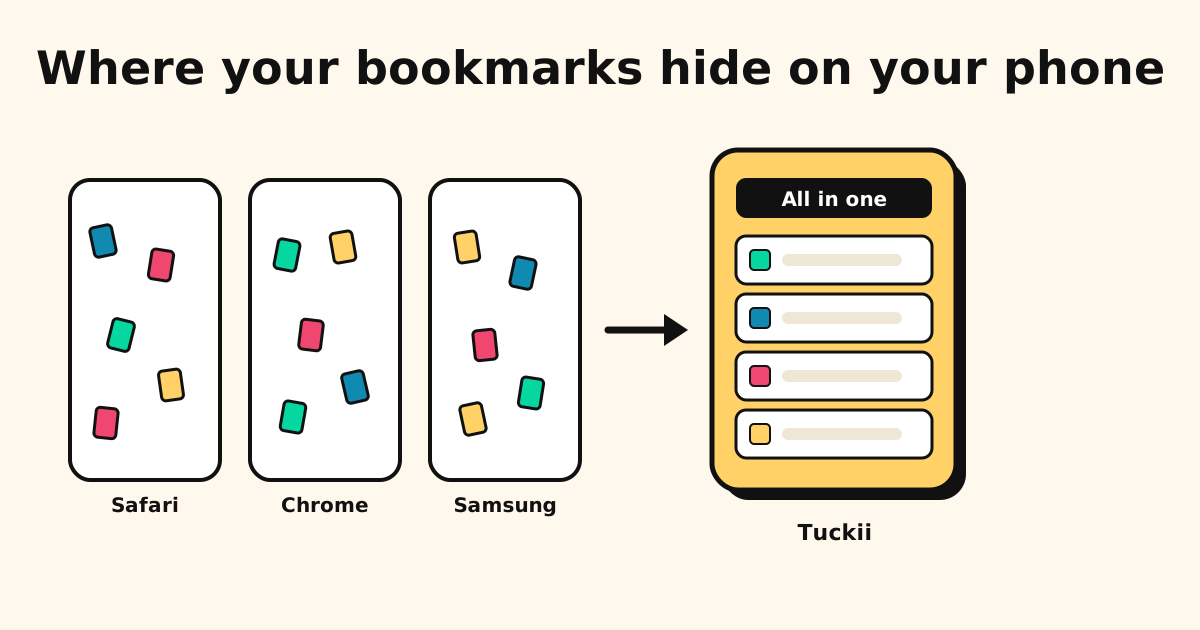
The pattern behind every “lost” bookmark: your phone doesn’t have one bookmark list — it has one per browser, plus Reading Lists, plus links you DM’d to yourself. Nothing is searchable across all of them at once. The link isn’t gone; it’s in a silo you forgot you used.
Why your bookmarks feel lost even when they’re “saved”
Finding the menu is the easy part. The reason saved links feel impossible to recover is structural:
- They’re scattered across browsers. Safari, Chrome, and Samsung Internet each keep their own list. A link is only in the one you happened to use that day. (On Android, here’s exactly where each browser stores your bookmarks.)
- You can’t search by content. Browser bookmarks are searchable by title only. If you don’t remember the exact title, scrolling is your only option.
- There’s no preview. Every bookmark looks like a line of text — no thumbnail, no description — so a list of 80 saved links is impossible to scan.
- Links from apps never make it in. When you find something great in TikTok, Instagram, or a newsletter, there’s no “add to Safari bookmarks” button. So those links end up in DMs to yourself, screenshots, or open tabs — and disappear. (Here’s how to save links from any app.)
You don’t have a memory problem. You have a storage problem: too many separate piles, none of them searchable.
The fix: one place for every saved link
The way out is to stop relying on each browser’s private list and route everything into a single app that:
- accepts links from any app via the share sheet (not just the browser),
- stores them on your device so there’s no account to manage, and
- lets you search titles, descriptions, and URLs across everything at once.
That’s what Tuckii does. Instead of “which browser did I use?”, you have one library, with previews, that you can actually search.
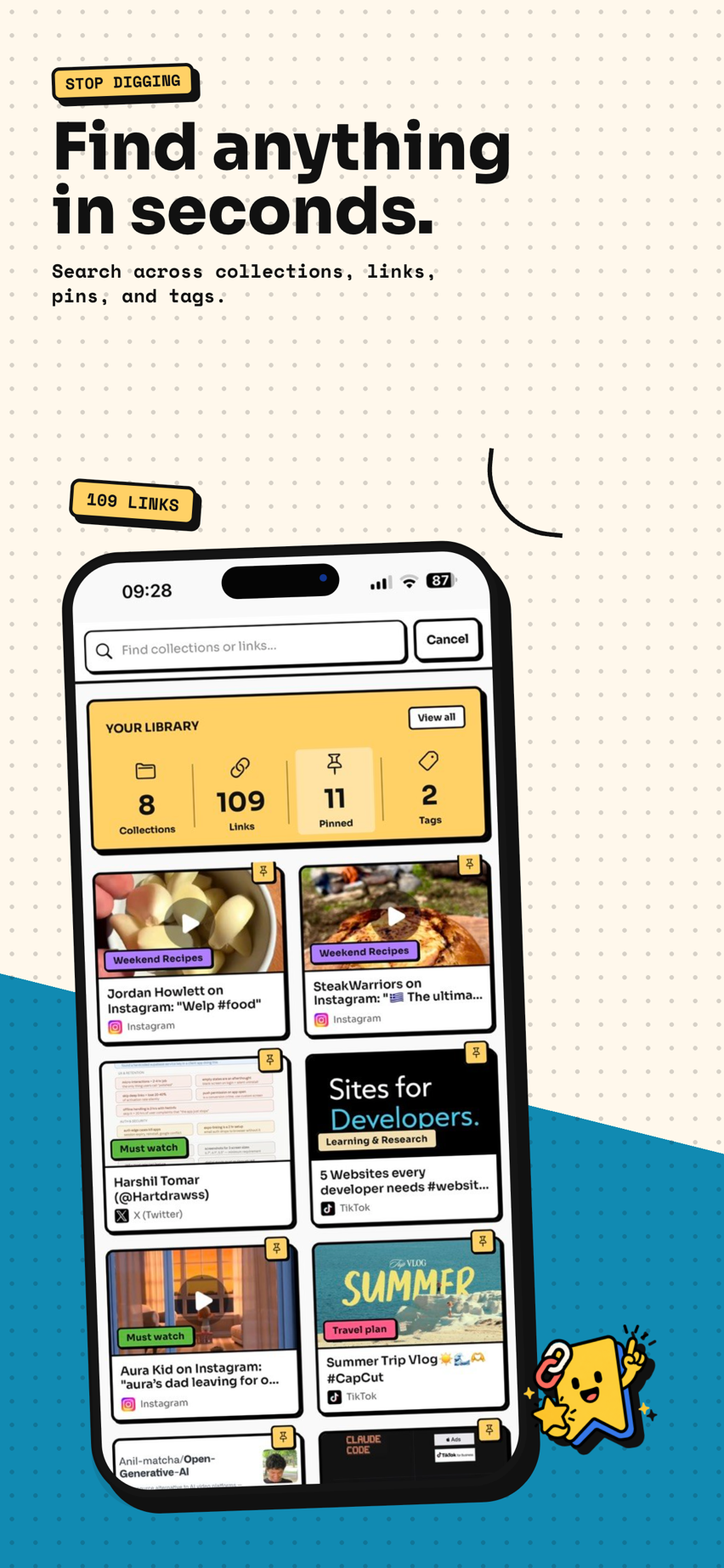
You don’t have to migrate your old browser bookmarks (most of them you’ll never miss). The fix is forward-looking: from today, save new links into one place so the “where did I put it?” problem never starts again. If you do want to rescue a few important ones, open each browser’s Bookmarks list once, share the keepers into Tuckii, and let the rest go.
Stop losing links across five different apps
Tuckii saves links from any app into one private, searchable library — no account, no company cloud, no hunting through browser menus. Free on iPhone and Android.
Download free →Quick answers
Where are my bookmarks on my iPhone? In Safari, tap the open-book icon → Bookmarks tab. Reading List items are under the glasses icon next to it.
Where are my favorites on my phone? “Favorites” usually means Samsung Internet (☰ → Bookmarks) or your Safari Favorites (open-book icon → Favorites folder).
Why can’t I find a bookmark I know I saved? You almost certainly saved it in a different browser than the one you’re searching, or you added it to a Reading List instead of Bookmarks. Check each browser’s list, recover a deleted one (on Android or on iPhone via iCloud), or save everything into one app so it can’t happen again.
Do bookmarks sync between phones? Only within the same browser and account (Safari via iCloud, Chrome via your Google account). They never sync between different browsers.