
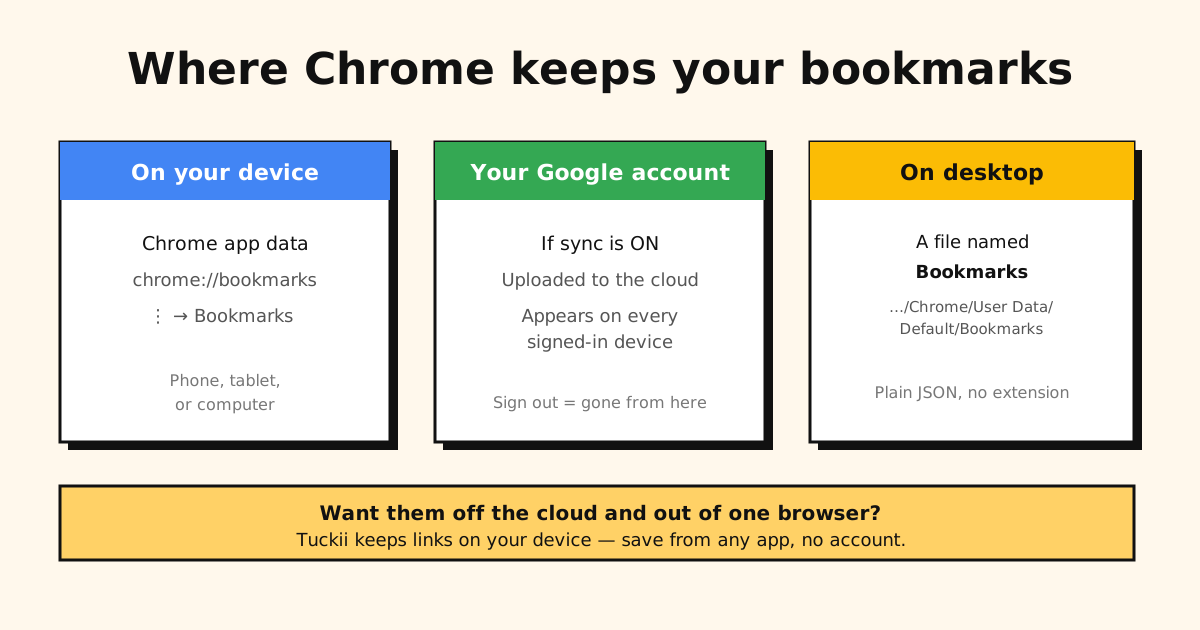
Quick answer: open your Chrome bookmarks at chrome://bookmarks (on a phone: ⋮ → Bookmarks, or
••• → Bookmarks on iPhone). On a computer, the actual file is named Bookmarks and sits in
your Chrome profile folder, and a copy lives in your Google account if sync is on.
In full, Chrome bookmarks are stored in up to three places at once:
- On the device, inside Chrome’s own app data.
- In your Google account, if you have sync turned on (so they appear on every signed-in device).
- In a file literally named
Bookmarkson desktop computers.
Here’s exactly where to find each, on every platform, plus how to export them.
This guide is about Chrome specifically, across phone and desktop. If you want where Android keeps bookmarks across all browsers (Chrome, Samsung Internet, etc.), see where are bookmarks stored on Android.
Chrome on Android & iPhone
On mobile, Chrome keeps bookmarks in its own app data, and — if you’re signed in with sync on — uploads a copy to your Google account.
- To open them: Chrome → tap ⋮ (Android) or ••• (iPhone) → Bookmarks.
- Where they really are: in Chrome’s sandboxed app storage (you can’t browse to the file on mobile), plus your Google account if sync is enabled.
- The catch: if you’re not signed in, those bookmarks exist only on that one phone. Sign out or lose the device and they’re gone.
(On a Samsung phone, remember Chrome isn’t the only list — Samsung Internet keeps its own separate favorites, and how to export them.)
Chrome bookmarks file location on desktop (Windows, Mac, Linux)
On a computer, Chrome stores bookmarks in a plain-text JSON file called Bookmarks (no file
extension) inside your profile folder. The exact path:
- Windows:
C:\Users\<you>\AppData\Local\Google\Chrome\User Data\Default\Bookmarks - macOS:
~/Library/Application Support/Google/Chrome/Default/Bookmarks - Linux:
~/.config/google-chrome/Default/Bookmarks
(There’s also a Bookmarks.bak backup of the previous session in the same folder — here’s
how to restore deleted bookmarks from it.) If you use Chrome
profiles, swap Default for Profile 1, Profile 2, and so on.
You normally never touch this file — you’d view bookmarks at chrome://bookmarks or the ☆ bar — but it’s the actual on-disk location people are looking for. (Bar not showing? Press Ctrl+Shift+B — more in how to show or hide the Chrome bookmarks bar. Found them but they’re a mess? Here’s how to organize Chrome bookmarks.)
Knowing where they’re stored doesn’t make them findable. Chrome’s bookmarks live in a file and a Google account — neither of which helps when you’re hunting for that one link. Tuckii keeps your saved links in one searchable library on your device, from any app, with no account. Free.
How Google account sync ties it together
Sign in to Chrome (profile avatar → Sign in to Chrome; on a phone, Settings → Sign in) and your bookmarks upload to your Google account — as long as Bookmarks is among what’s saved there (Settings → You and Google → your account name; older versions call this turning on sync). After that they appear at chrome://bookmarks on any device where you sign in — phone, tablet, work laptop. Switch phones, sign in, and they follow you (step-by-step for move day: how to transfer bookmarks to a new phone). Sign out, and the account’s bookmarks are removed from that device — they stay in your Google account. If they don’t follow you, that’s a sync problem — see why Chrome bookmarks stop syncing (and the fixes).
The flip side: your bookmarks now live on Google’s servers, tied to your account. That’s convenient, but it’s also why “where are they stored?” rarely has a simple answer — they’re in several places, and one of them is someone else’s cloud.
How to export your Chrome bookmarks
Want a portable copy? On desktop, open chrome://bookmarks → the ⋮ (top right) → Export bookmarks, and Chrome saves an HTML file with everything. On phones there’s no export button — you sync and export from a computer instead. Full step-by-step for every platform: how to export Chrome bookmarks.
The two things Chrome bookmarks can’t do
Even once you’ve found them, Chrome bookmarks have two real limits:
- They’re locked to Chrome + your Google account. Your library is only as portable as your willingness to stay in Chrome and signed in.
- They can’t capture links from apps. A video in TikTok, a post in Instagram, a link someone texts you — none of that becomes a Chrome bookmark. Those live trapped inside each app.
Keep links in one place you own — Tuckii
If the real goal is “all my saved links in one place I control,” a dedicated bookmark app beats a browser:
- Save from any app via the share sheet — Chrome, Safari, TikTok, Instagram, YouTube, anything.
- Stored on your device, not split between Google’s cloud and a dozen apps — and it works offline.
- One searchable library, no account. Free to use every day; an optional Pro upgrade adds tags, full-collection sharing, and backup.
- Bring your Chrome bookmarks with you: export the HTML above, then in Tuckii use Settings → Backup & Restore → Import Bookmarks.
How it stacks up against other options: the best app for saving links compares the main bookmark apps side by side, and the best free bookmark manager covers the free ones.
Your links, on your device — not scattered across the cloud
Tuckii keeps every saved link in one private place. Save from any app, no account, free to use.
Download Tuckii free →For the app-link side of the problem, see how to save links from any app; if you’ve lost bookmarks, see how to recover deleted bookmarks (or on Android).