
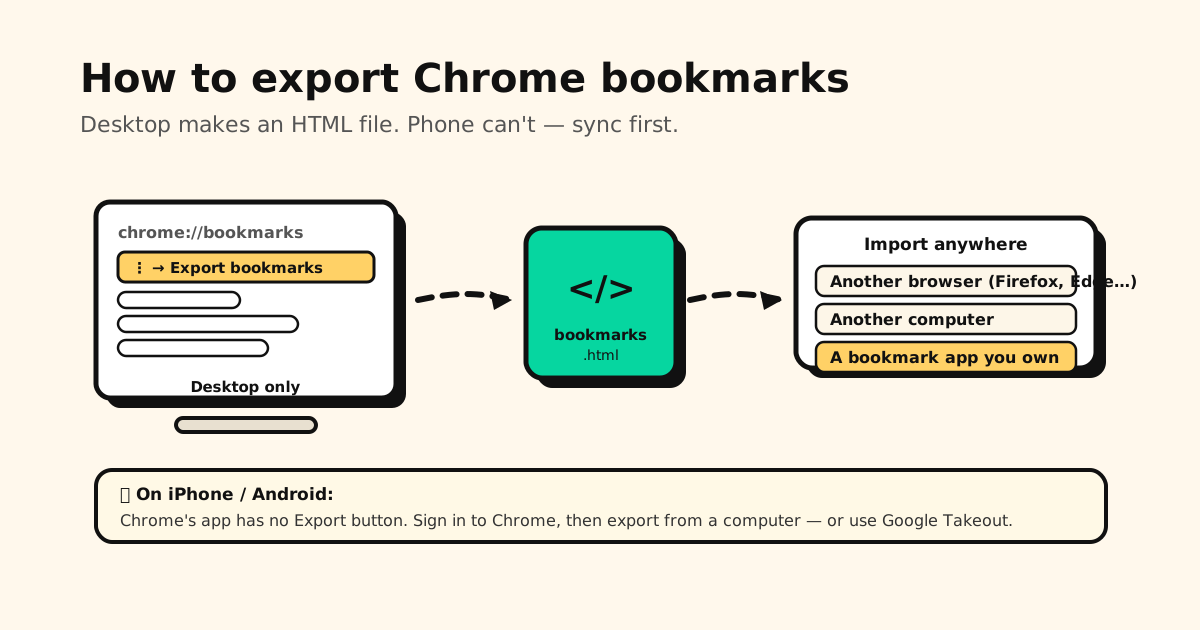
Chrome keeps your bookmarks, but it doesn’t make it obvious how to get a copy you own. The good news: on a computer it’s two clicks. The catch: on a phone there’s no export button at all. Here’s the full picture, plus what to actually do with the file once you have it.
Quick answer: Chrome on iPhone and Android has no export button at all — sync to your Google
account and export from a computer, or use Google Takeout. On desktop it’s two clicks:
chrome://bookmarks → the ⋮ menu (top right) → Export bookmarks → one HTML file with
everything in it.
Exporting on iPhone and Android — the part Chrome doesn’t do
This is where most people get stuck, so it goes first.
Chrome’s mobile apps have no Export button. There’s no hidden setting and no menu you’ve missed — Google simply didn’t build one. Two workarounds actually work:
- Sync, then export from a computer. On your phone: Chrome → Settings → Sign in (already signed in? tap your name) and check that Bookmarks is among what’s saved to your Google Account. Then on any computer, sign into Chrome with the same Google account and export as below. Your phone’s saves land in the Mobile bookmarks folder.
- Google Takeout — no computer needed. Open takeout.google.com in your phone’s browser, sign in, deselect everything except Chrome, and export. You get your bookmark data as a download. This is the one to use when there’s no laptop around.
Export Chrome bookmarks on desktop (Windows, Mac, Linux)
- Open Chrome and go to
chrome://bookmarks(or ⋮ → Bookmarks → Bookmark Manager). - Click the ⋮ menu in the top-right corner of the Bookmark Manager (not the main Chrome menu).
- Click Export bookmarks.
- Choose where to save it. Chrome names the file
bookmarks_[date].htmland drops it in your Downloads folder by default.
That single file holds every bookmark and folder, including your Mobile bookmarks folder if you’re signed in to Chrome on your phone with the same Google account.
What’s inside the HTML file
It’s a plain, human-readable HTML file — you can even open it in a browser to see a clickable list. Under the hood it’s the standard “Netscape Bookmark” format that every browser and most bookmark apps can import. That’s what makes it portable: it isn’t locked to Chrome.
How to export just one folder (and why Chrome makes it awkward)
Chrome can’t export a single folder. Export bookmarks is all-or-nothing — you get every bookmark you have, which is a problem when you only wanted to hand someone your recipes and not your entire browsing life. Two workarounds, easiest first:
- Edit the exported file. The export is plain HTML (see above), so open it in any text editor and delete the sections you don’t want. Each folder is a clearly labelled block. Crude, but it takes a minute and needs no setup.
- Use a second Chrome profile. Create a new profile, open the Bookmark Manager in your normal one, right-click the folder → Copy, switch to the new profile, paste it into its Bookmark Manager, then export from there. You get a clean file with only that folder. This copies whole folders intact, which the file-editing route doesn’t guarantee if you’re careless.
”Chrome isn’t exporting all my bookmarks”
Usually one of three things, in order of likelihood:
- Wrong profile. Chrome keeps a completely separate bookmark set per profile. Check the avatar in the top-right corner — the bookmarks you’re missing may belong to another one.
- Sync hadn’t finished. Phone saves only appear under Mobile bookmarks once sync has actually run. On the computer, open ⋮ → Settings → You and Google → your account name and confirm Bookmarks is saved to your Google Account and the account matches.
- You’re signed out. A signed-out Chrome exports only what’s stored locally on that machine.
Where to put the file next
Once you have the HTML file, it imports almost anywhere:
- Another browser — Firefox, Edge, Safari, Brave all have an “Import bookmarks / Import HTML file” option in their bookmark manager or settings.
- Another computer — copy the file over and use the other machine’s browser to import it. (Or skip the file entirely and just sign into Chrome with the same Google account on both — see the FAQ.)
- A bookmark app you actually own — more on that below.
The file is a backup — but browser bookmarks still aren’t yours
Exporting is the right instinct: a copy you control beats trusting one account forever. But an HTML export is a snapshot — it’s already out of date the moment you save your next link, and it still can’t hold the links you save inside apps (a TikTok, an Instagram post, a link a friend texts you).
For links you genuinely don’t want to lose, a dedicated bookmark app is sturdier than an occasional export — that’s Tuckii:
- Import your Chrome export in seconds — the HTML file above goes straight into Settings → Backup & Restore → Import Bookmarks.
- Save from any app via the share sheet afterward, not just the browser.
- On your device, no account — and with Pro, its own backup file you own, so “back up my bookmarks” stops being a manual chore you forget to do.
- Free for everyday saving; an optional Pro upgrade adds tags, full-collection sharing, and backup.
Turn a one-time export into a library you own
Import your Chrome bookmarks into Tuckii, then keep everything — from any app — in one private, searchable place on your device. Free, no account.
Download Tuckii free →Want to know where Chrome keeps these bookmarks in the first place (including the on-disk file)? See where are Chrome bookmarks stored. Moving off Pocket instead? Here’s how to export your Pocket data.