
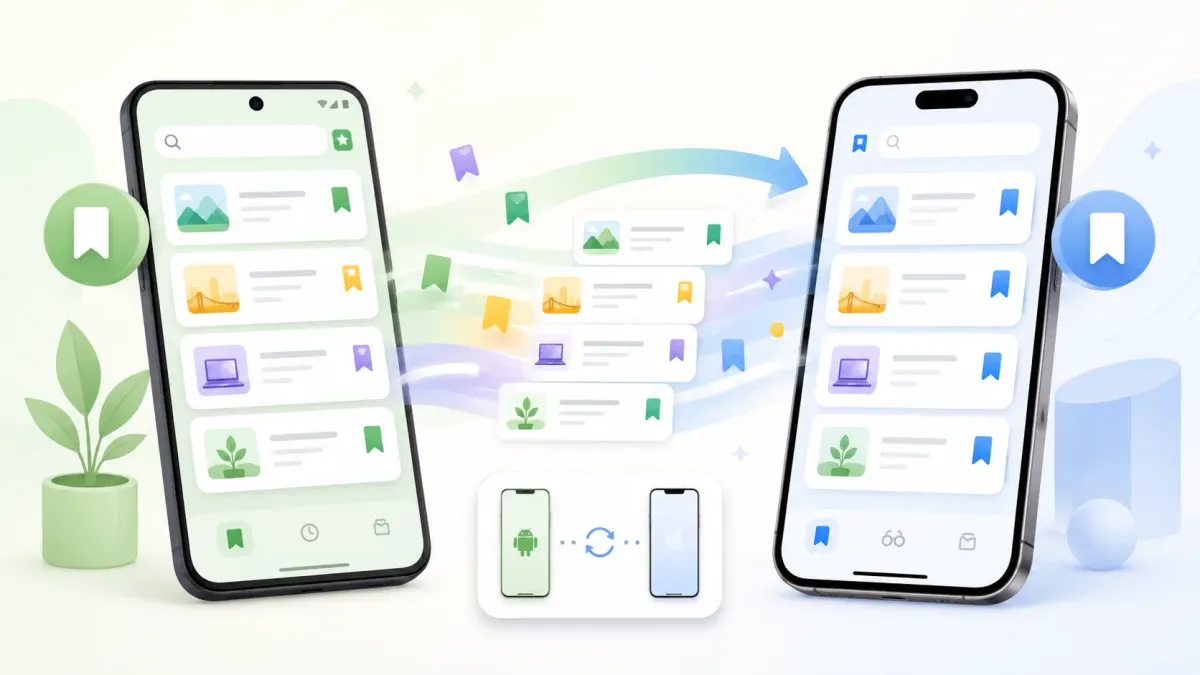
Getting a new phone shouldn’t mean losing your saved pages. The good news: bookmarks can follow you — the bad news is that each browser does it differently, and the links you saved inside apps often don’t come at all. Here’s how to move each one.
Quick answer: it depends where they live — Chrome transfers via your Google account, Samsung Browser (formerly Samsung Internet) via Smart Switch / Samsung account, and Safari via iCloud. Sign into the same account on the new phone with sync on.
Chrome (Android or iPhone)
- On the new phone, open Chrome → Settings → Sign in and pick the same Google account.
- Check Bookmarks is on: Settings → tap your name → choose what’s saved to your Google Account. (Older Chrome versions call this turning on sync.)
- Your bookmarks download automatically and appear under ⋮ → Bookmarks.
If you weren’t signed in to Chrome on your old phone, those bookmarks lived only on that device — see how to recover bookmarks on Android. Moving between computers instead of phones? Use the HTML file method in how to export Chrome bookmarks.
Samsung Browser (Samsung Internet)
- Easiest: run Smart Switch during the new phone’s setup to copy Samsung Internet data across.
- Or sign into the same Samsung account with bookmark sync on, and favorites restore from Samsung Cloud.
Full detail: Samsung Internet bookmarks.
Safari (new iPhone)
- Sign into the same Apple Account (formerly Apple ID) on the new iPhone.
- Settings → your name → iCloud → Saved to iCloud → Safari = on.
- Your bookmarks and Reading List sync to the new device.
Old phone lost, broken, or already reset?
Every method above quietly assumes one thing: your bookmarks were already copied to an account before the old phone went away. Without the old phone, that account copy is all there is — so the question is simply whether sync was on:
- Chrome: if you were signed into Chrome with Bookmarks saved to your Google Account, sign into the same account on the new phone and they come back. If you were never signed in, they only existed on the old phone.
- Samsung Internet: if Samsung Internet was syncing to your Samsung account, sign into that account on the new Galaxy and turn sync on (Settings → tap your name (Samsung account) → Samsung Cloud → turn on sync for Samsung Browser). Smart Switch won’t help here — it copies from the old phone, or from a Smart Switch backup you made of it earlier.
- Safari: if Safari was on in your iCloud settings, sign into the same Apple Account and they sync back. iCloud also keeps earlier versions you can restore — see how to recover deleted bookmarks.
If none of those were on, there’s honestly no way to pull bookmarks off a phone you no longer have. That’s the strongest argument for keeping a copy somewhere that doesn’t live on a single phone.
The catch: your saved links are split — and app links don’t move
Notice the pattern: each method only moves that browser’s bookmarks, tied to that account. If you use more than one browser, you’re doing this two or three times. And the links you saved inside apps — a TikTok recipe, an Instagram post — have no transfer path at all. New phone, and half your saved stuff is gone.
Move everything at once — Tuckii
Tuckii keeps every link you save — from any app, any browser — in one library on your device, so moving phones is one step instead of several:
- Everything in one place — browser links and app links together, searchable, no account.
- Move it with a backup file — export your library from Tuckii on the old phone and restore it on the new one (backup/restore is part of the optional Pro upgrade). No cloud account required, and it’s also how you move between an iPhone and an Android phone.
- iPhone to iPhone? Let iCloud carry it — with Pro, iCloud Sync puts your library in your own private iCloud; on the new iPhone, open Tuckii and tap Sync Now in Settings → Cloud Sync. The same works for an iPad or a Mac.
- Android to Android? Let Google Drive carry it — with Pro, Google Drive sync puts your library in your own Google Drive; on the new phone, open Tuckii and tap Sync Now in Settings → Cloud Sync. The same works for an Android tablet.
- Free to use every day for saving, organizing, and searching.
One library that moves with you
Stop transferring bookmarks browser by browser. Tuckii keeps every saved link in one place you control — free on iPhone, iPad, Mac and Android.
Download Tuckii free →Wondering where each browser keeps them in the first place? See where bookmarks are stored on Android.