
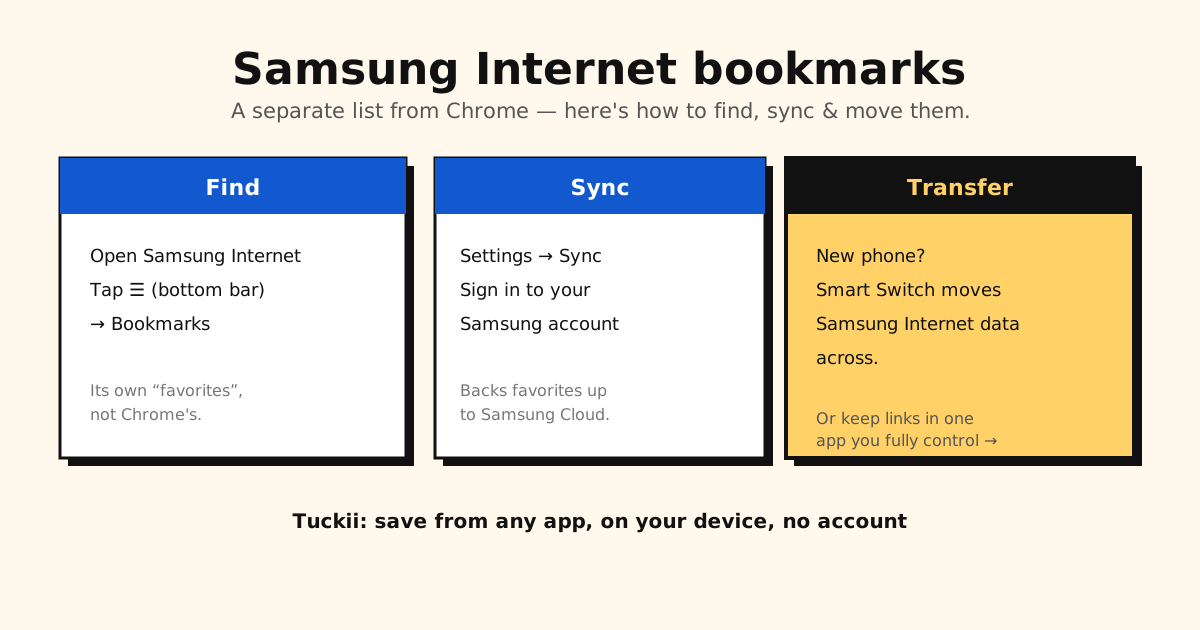
Samsung Internet keeps a completely separate set of bookmarks (it calls them “favorites”) from Chrome. That’s the single biggest reason Samsung users think they’ve “lost” bookmarks — they saved them in one browser and are looking in the other. Here’s how to find, sync, export, import, and move your Samsung Internet bookmarks.
In 2026 Samsung renamed Samsung Internet to Samsung Browser — on many phones the icon now just says “Browser”. Same app, same bookmarks, so this guide uses both names.
Want the wider picture of where Android keeps bookmarks across every browser? See where are bookmarks stored on Android.
Where to find your Samsung Internet bookmarks
- Open Samsung Internet (on newer phones the icon may just say Browser).
- Tap the ☰ menu (the three-line icon in the bottom bar).
- Tap Bookmarks.
Same three steps on a Galaxy tablet — the menu sits in the bottom bar there too.
That list is stored in Samsung Internet’s own app data — independent of Chrome and your Google account.
Sync them to your Samsung account
To back favorites up and have them follow you across Samsung devices:
- Go to Samsung Internet → Settings → Sync (sometimes shown as “Sync with Samsung Cloud”).
- Sign in to your Samsung account and enable bookmark/favorite sync.
Once on, your favorites are backed up to Samsung Cloud and restored when you sign in on another Samsung phone.
How to export Samsung Internet bookmarks
The honest answer first: Samsung Internet has no one-tap “export to HTML” the way Chrome does. There’s no Export button anywhere in the phone app. But three routes get your favorites out — pick the one that matches what you actually want.
Route 1 — You want an HTML file (the real “export”)
Go through desktop Chrome. This is the only path that ends in a portable file:
- On your computer, add the Samsung Browser extension (formerly Samsung Internet) to Chrome from the Chrome Web Store.
- Open the extension and sign in with the same Samsung account as your phone, and make sure bookmark sync is on in Samsung Internet → Settings → Sync.
- Use the extension’s import/sync option to pull your favorites across. They land in Chrome’s bookmark manager.
- In Chrome, open
chrome://bookmarks→ ⋮ → Export bookmarks. You now have a standard HTML file that any browser or bookmark app can import.
(Step 4 in detail, including where the file lands: how to export Chrome bookmarks.)
A heads-up: the extension’s reviews are poor, and many recent ones report sign-in or sync failures. If it won’t connect, Routes 2 and 3 below still cover a new phone and a backup. Samsung Browser for Windows, Samsung’s desktop version, syncs your favorites to a PC too — but it has no export option, so it can’t give you the file.
Route 2 — You’re moving to a new phone
Skip the file entirely. Smart Switch moves Samsung Internet data — favorites included — from the old phone to the new one during setup. Already syncing? Just sign into the same Samsung account on the new device and turn sync on.
Route 3 — You just want a backup
Samsung account sync (above) already backs favorites up to Samsung Cloud. It’s not a file you own, but it survives a lost or reset phone.
One correction worth knowing, because it trips people up: signing Samsung Internet into a Firefox account syncs open tabs, not bookmarks. If someone told you to sync to Firefox to get your favorites out, that’s the wrong lever — use Route 1.
No computer? No Samsung account?
This is where most people get stuck, so here’s the straight answer: without a computer and a Samsung account, there is no way to export Samsung Internet bookmarks as a file. Samsung Internet has no export option on the phone at all, and the only route that produces a file (Route 1) needs both desktop Chrome and a signed-in Samsung account.
What you can still do on the phone alone:
- Share bookmarks one at a time. Open a bookmark, share its link to another app. It works, but only for individual bookmarks — there’s no way to share a whole folder — so it’s slow for a big list.
- Moving to a new Samsung phone? Smart Switch moves your data phone-to-phone over a cable or Wi-Fi (Route 2), no computer involved.
If you’re doing the one-at-a-time route anyway, send them somewhere that keeps them properly. With Tuckii you share each link from Samsung Internet into one searchable library on your phone — no computer and no account. To be clear about the limit: Tuckii can’t pull in all your Samsung favorites at once, because Samsung Internet never produces a file on the phone to import. It’s one link at a time for the old ones — and every new link you save afterwards goes straight in.
How to import bookmarks into Samsung Internet
Moving the other way — you’ve got bookmarks in Chrome and want them in Samsung Internet? There’s no “import from file” button in the phone app either, so this also goes through a computer. The route that works today is Samsung Browser for Windows, Samsung’s free desktop browser (Windows 10 or 11):
- Make sure your Chrome bookmarks are actually on the desktop. If you don’t already use Chrome Sync, sign into Chrome on a computer with your Google account and let them sync down.
- Install Samsung Browser for Windows from Samsung’s website and import your Chrome bookmarks into it (it can also import an HTML file).
- Sign in with your Samsung account — the same one your phone uses.
- On the phone, make sure bookmark sync is on (Settings → Sync). The imported bookmarks sync down like any other favorites.
Older guides describe the Chrome extension’s Chrome bookmarks → Import button instead. Its current listing only describes syncing from the phone to the PC, so don’t count on that route.
Both directions need a Samsung account on both ends, because Samsung Cloud is what actually carries the data. No account, no bridge.
Transfer Samsung Internet bookmarks to a new phone
- Samsung → Samsung: Smart Switch moves Samsung Internet data (including favorites) from your old phone to the new one during setup.
- Already synced? Just sign into the same Samsung account on the new device and turn sync on.
Switching away from Samsung — or to an iPhone? The cross-platform walkthrough is here: how to transfer bookmarks to a new phone.
Samsung Internet bookmarks disappeared or not syncing?
Nine times out of ten, “disappeared” favorites aren’t deleted. Run these checks in order:
- Are you in the right browser? Samsung Internet and Chrome keep separate lists — a favorite saved in one never shows in the other.
- Same Samsung account? Sync only restores favorites tied to the account you’re signed into. Check Settings → Sync and confirm the account matches your old phone.
- Is sync actually on? After an update or reset, bookmark sync can silently turn off. Toggle it off and on again to force a fresh sync.
- Secret mode? Favorites saved in Secret mode live in their own list and don’t sync — see below.
If they’re genuinely deleted, your options are a Samsung Cloud / Smart Switch backup — the full recovery playbook is in how to find and recover bookmarks on Android.
Secret mode bookmarks: why they never transfer
This one costs people their bookmarks when they switch phones, so it’s worth being blunt about.
Secret mode favorites do not sync, and they do not move to a new phone. Not through Samsung Cloud, not through Smart Switch, not through the desktop Chrome extension. Samsung’s own support position is that Secret mode bookmarks can’t be transferred. Set up a new phone and they are simply gone.
The separation runs both directions, which surprises people: your normal bookmarks aren’t visible inside Secret mode either. Samsung keeps the two lists apart on purpose — that’s the point of the feature, and it’s the same reason there’s no export.
What you can actually do
There is no “move to normal mode” button. No setting, no built-in transfer, and no third-party tool that reads the Secret mode list. The only route that works is manual, and it has to happen before you wipe or switch phones:
- Open Secret mode on the old phone and open its bookmark list.
- Write the URLs down — a note, a screenshot, or open each one and share the link to yourself.
- On the new phone (or in normal mode), bookmark them again by hand.
That’s genuinely it. If someone tells you there’s a transfer trick, they’re describing normal-mode bookmarks. Plan for the retyping, or keep anything you’d hate to lose somewhere that isn’t locked inside Secret mode in the first place.
The catch: your links are split across browsers and apps
Even with sync working, Samsung Internet favorites are still a silo:
- They don’t appear in Chrome (or any other browser).
- They’re tied to the Samsung ecosystem.
- They can’t capture the links you save inside apps — a TikTok video, an Instagram post, a link a friend sends you.
So “all my saved links” still means hunting across Samsung Internet, Chrome, and a handful of apps — with no way to search them together.
Keep every link in one place — Tuckii
A dedicated bookmark app fixes the silo problem because any app can send links to it:
- Save from anywhere via the Android share sheet — Samsung Internet, Chrome, TikTok, Instagram, YouTube, newsletters.
- One searchable library on your device — not split between Samsung Cloud, Google, and apps; works offline; no account.
- Free to use every day; an optional Pro upgrade adds tags, full-collection sharing, backup, and Google Drive sync across your Android phones and tablets.
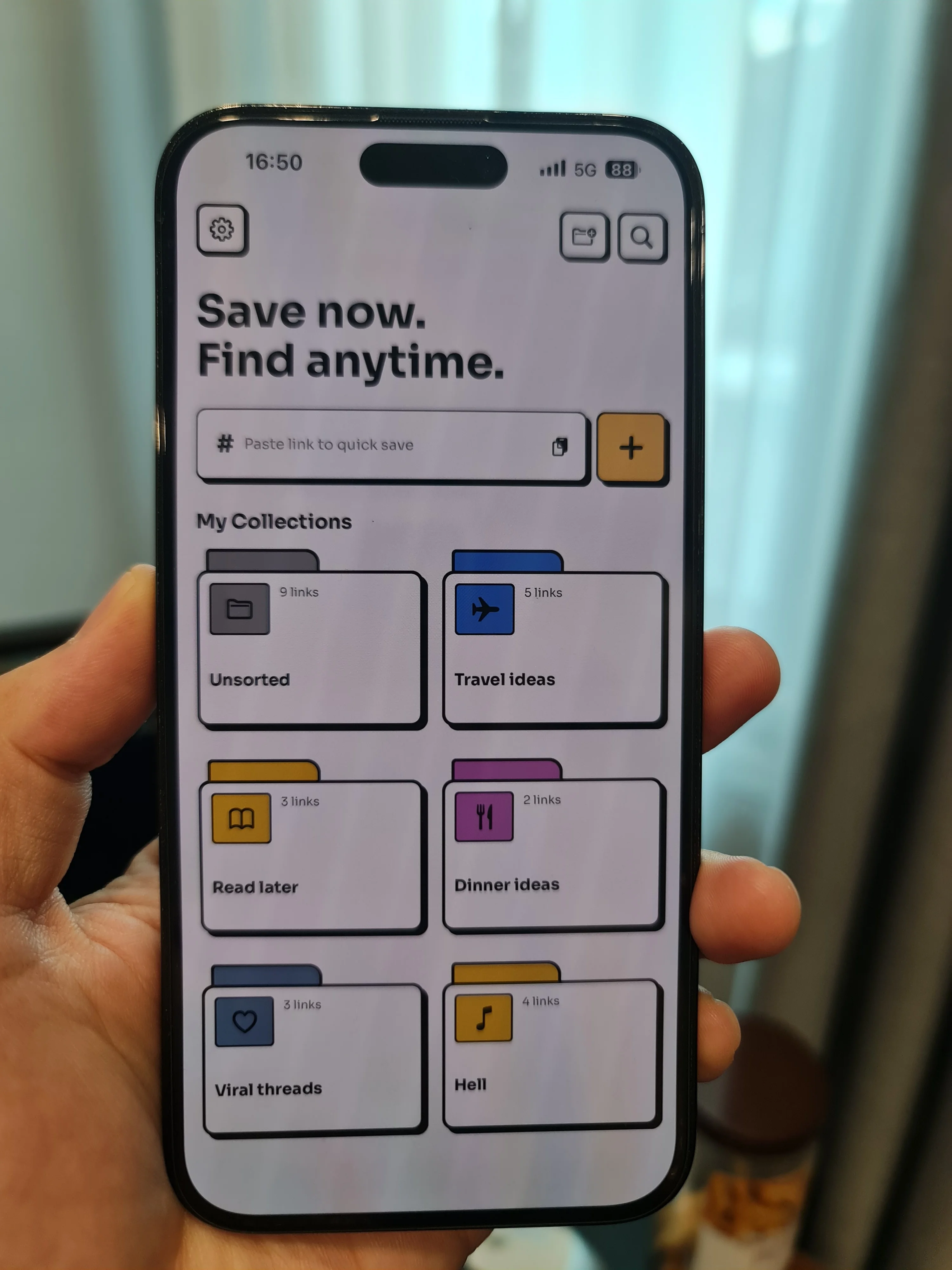
One home for your saved links
Stop splitting bookmarks across Samsung Internet, Chrome, and apps. Tuckii keeps them all in one place — no account, on your device.
Get Tuckii free on Google Play →If you’ve lost favorites, see how to find and recover bookmarks on Android; for the full Android app setup, see the best bookmark app for Android.