
Deleted a bookmark by accident, or opened your browser to find a folder gone? The bad news: no browser has a bookmark trash. The good news: Chrome, Safari and Firefox each quietly keep one copy somewhere — and whether you get your bookmarks back mostly comes down to finding that copy before it gets replaced.
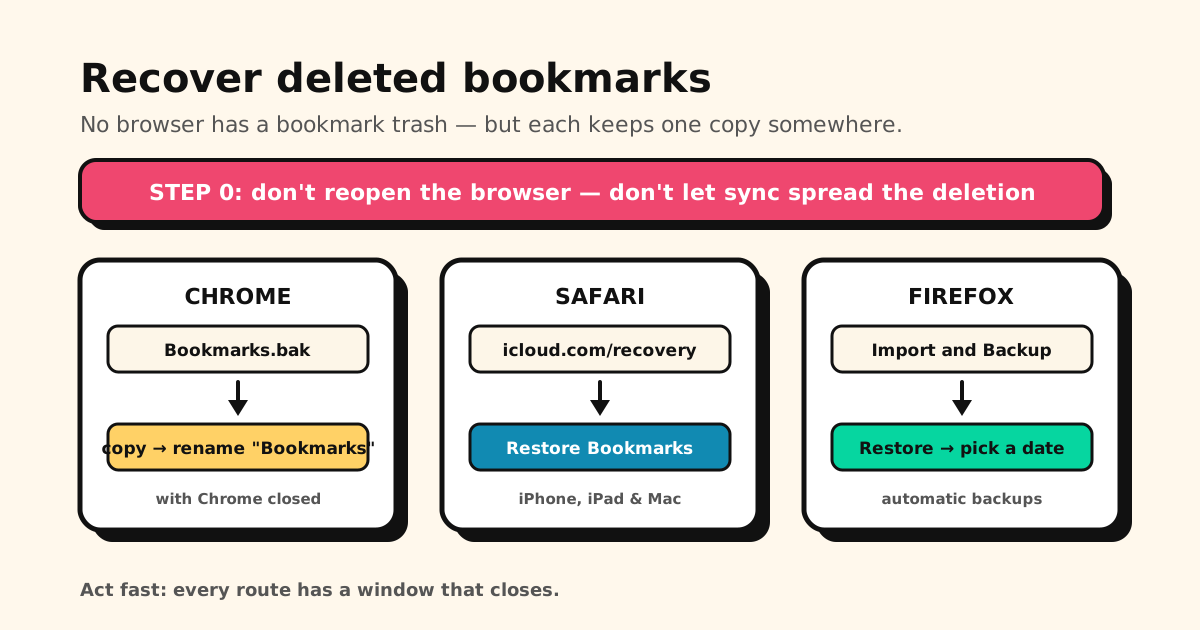
Quick answer: first, don’t reopen the browser and don’t open your other synced devices. Then:
Chrome → press Ctrl/Cmd+Z in chrome://bookmarks if it just happened, or restore the
Bookmarks.bak file with Chrome closed. Safari → icloud.com/recovery → Restore Bookmarks.
Firefox → Manage bookmarks → Import and Backup → Restore.
On an Android phone? The routes are different there — see how to find and recover bookmarks on Android.
First: are they actually deleted?
A lot of “deleted” bookmarks are sitting somewhere else. Check these before you touch any files — restoring a backup rolls back everything since that backup, including bookmarks you added on purpose.
- A different Chrome profile. On desktop, each profile keeps its own bookmarks. Click the avatar (top right) and switch.
- A different browser. Safari, Chrome and Firefox never share a bookmark list.
- Signed out, or sync paused. Bookmarks that exist on one device but not another usually point to sync, not deletion — see why Chrome bookmarks stop syncing.
- Reading List, not Bookmarks. In Safari they’re separate tabs — see where Safari’s Reading List lives.
- Just a hidden icon (iPhone). On iOS 26 and later, Safari’s Compact tab layout drops the book icon from the toolbar, so bookmarks can look gone after an update. Tap ⋯ → Bookmarks on iOS 26, or open a new tab and tap Show Bookmarks on iOS 27.
Before anything else: stop the deletion spreading
Two habits decide whether recovery works:
- If you use sync, your other devices still have the bookmark — for now. A deletion travels on the next sync. If a laptop or tablet has been closed since, open it with its internet connection off so it can’t receive the deletion, then export or copy the bookmarks you need.
- On a computer, don’t reopen Chrome until you’ve read the
Bookmarks.baksection below.
Recover deleted bookmarks in Chrome (desktop)
Just deleted it? Undo
Open chrome://bookmarks and press Ctrl+Z (Windows) or Cmd+Z (Mac). This only works for a
very recent deletion in the same session — once you close the Bookmark Manager tab or the browser,
it’s gone.
Restore the Bookmarks.bak file
Chrome stores your bookmarks in a file called Bookmarks (no extension), and next to it keeps a
Bookmarks.bak. Here’s the part most guides get wrong: Chrome doesn’t refresh that backup when you
close it. It copies Bookmarks over Bookmarks.bak the first time it saves a bookmark change after
starting — and sync can make that happen within moments of opening Chrome.
In practice that means Bookmarks.bak holds your bookmarks as they were when you last opened
Chrome. So:
- Deleted something today and haven’t reopened Chrome since? The backup very likely still has it.
- Reopened Chrome after the deletion? The backup has probably been replaced already.
- Added a bookmark and deleted it in the same session? It was never in the backup.
To restore it:
-
Close Chrome completely — every window. On Windows, check the system tray that it isn’t still running in the background.
-
Open your profile folder:
- Windows: press Win+R, paste
%LOCALAPPDATA%\Google\Chrome\User Data\Defaultand press Enter - Mac: in Finder, Go → Go to Folder, paste
~/Library/Application Support/Google/Chrome/Default - Linux:
~/.config/google-chrome/Default
Using several Chrome profiles? Look in
Profile 1,Profile 2and so on instead ofDefault. (More on these paths: where Chrome bookmarks are stored.) - Windows: press Win+R, paste
-
Rename
BookmarkstoBookmarks.old. That keeps today’s version as a fallback. -
Copy
Bookmarks.bak, and rename the copy toBookmarks. On Windows, turn on View → File name extensions first so you don’t end up withBookmarks.bak.bak. -
If you use sync, go offline, then reopen Chrome and check
chrome://bookmarks. If your bookmarks are back, export a copy right away (⋮ → Export bookmarks) before reconnecting — sync may try to line your bookmarks up with your Google account’s version again, and the HTML file keeps them safe either way. Full steps: how to export Chrome bookmarks.
One more caveat for newer versions of Chrome: if you’re signed in without full sync, Chrome can
keep bookmarks “in your Google Account” as a separate list — and the .bak backup only covers
bookmarks stored on the computer itself.
Every recovery route here has a window that closes. Reopen the browser, let sync run, or wait too long, and the copy is gone. Tuckii keeps the links you care about in their own library on your phone — clearing or resetting a browser doesn’t touch it. Free for everyday saving, no account.
Still gone? Check another device
If sync was on and one of your devices hasn’t been online since the deletion, its copy is your best remaining chance — follow step 1 of the section above: open it offline, then export.
Recover deleted bookmarks in Safari (iPhone, iPad & Mac)
Restore from iCloud
If Safari is turned on in your iCloud settings, Apple automatically archives earlier versions of your bookmarks — which is the easiest recovery on any browser:
- Go to icloud.com/recovery and sign in with your Apple Account.
- Choose Restore Bookmarks.
- Find the version from before the deletion (you can sort by date deleted) and choose Restore.
Apple archives your current bookmarks before restoring, so you can switch back if you pick the wrong version. Don’t edit your bookmarks while the restore is running — changes made during it aren’t saved. The restored bookmarks show up on every device that syncs Safari with iCloud.
On a Mac with Time Machine
Safari keeps bookmarks in a file called Bookmarks.plist in ~/Library/Safari. If you back up with
Time Machine:
- Quit Safari.
- In Finder, hold Option, choose Go → Library, and open the Safari folder.
- Enter Time Machine, go back to a date before the deletion, select
Bookmarks.plist, and choose Restore.
If Safari syncs with iCloud, try iCloud’s Restore Bookmarks first — it’s the route built for synced libraries.
Recover deleted bookmarks in Firefox
Firefox makes automatic bookmark backups and keeps up to 15 of them, so it has the most forgiving recovery:
- Open the menu ☰ → Bookmarks → Manage bookmarks.
- In the Library window, click Import and Backup → Restore.
- Pick a dated backup from before the deletion.
Firefox warns that restoring replaces all your current bookmarks with the backup. If you’ve added bookmarks since, save them first with Import and Backup → Backup….
When they’re really gone
If the deletion has synced to every device, Chrome has been reopened, and there’s no iCloud version, Time Machine backup or Firefox backup from before it — there’s no built-in way back. That’s the honest limit of browser bookmarks: they’re protected by one short-lived copy, and it’s easy to lose without noticing.
The fix going forward is having a copy that doesn’t depend on that window: export an HTML file every so often, and keep the links you really care about somewhere a browser mishap can’t reach.
Keep the links that matter outside the browser — Tuckii
Tuckii keeps your saved links in their own library on your phone, separate from any browser:
- A browser mishap doesn’t touch it. Deleting, clearing or resetting a browser leaves your Tuckii library as it was.
- Save from any app via the share sheet — Chrome, Safari, TikTok, Instagram, YouTube — into one searchable place, not scattered across browsers.
- Bring your existing bookmarks: export them as HTML, then use Settings → Backup & Restore → Import Bookmarks.
- On your device, no account. Free for everyday saving; an optional Pro upgrade adds tags, full-collection sharing, and a backup file you control.
Stop trusting one browser with every link
Tuckii keeps the links you care about in one searchable library on your phone — saved from any app, no account. Free to use on iPhone, iPad and Android.
Download Tuckii free →Clearing bookmarks out on purpose instead? Here’s how to bulk delete bookmarks. On an Android phone? See how to find and recover bookmarks on Android.