
Sooner or later every saved-links collection turns into clutter: dead pages, duplicates, things you saved once and never opened. Here’s how to delete bookmarks on every platform — one at a time, or the whole pile at once — and the fastest way to do the big clean-up.
Quick answer: in Chrome (desktop) open chrome://bookmarks, right-click → Delete (or
select all with Ctrl/Cmd+A, then Delete). On iPhone Safari, tap the book icon → swipe left on a
bookmark → Delete. On Mac Safari, open the Bookmarks sidebar → right-click → Delete.
Delete bookmarks in Chrome (desktop)
- Open
chrome://bookmarks(or ⋮ → Bookmarks → Bookmark Manager). - One bookmark: right-click it → Delete (or hover and use the ⋮ on the row).
- Many at once: click one bookmark, then Ctrl+A (Windows) / Cmd+A (Mac) to select everything in the current folder — or Ctrl/Cmd-click to pick specific ones — then press Delete. This is the one place a browser lets you clear in bulk.
Delete bookmarks in Chrome (Android & iPhone)
- Tap the ⋮ menu (⋯ on iPhone) → Bookmarks.
- Android: long-press a bookmark to start selecting. iPhone: tap Select at the bottom.
- Tap the other bookmarks you want gone → tap the trash icon (Android) or Delete (iPhone).
There’s no “delete everything” button in the mobile apps — you select, then delete.
Delete bookmarks in Safari (iPhone & iPad)
- Tap the open-book icon at the bottom → the Bookmarks tab.
- One: swipe left on the item → Delete (or touch and hold it → Delete).
- Several: tap ⋯ (More) → Select Bookmarks, select them, then tap Delete. (On older iOS versions, tap Edit instead.)
No book icon? On iOS 26 and later, Safari’s Compact tab layout hides it. Tap ⋯ (More) → Bookmarks on iOS 26, or open a new tab and tap Show Bookmarks on iOS 27. The Bottom and Top layouts keep the icon — switch in Settings → Apps → Safari → Tabs.
(Looking for the Reading List instead of Bookmarks? That’s a separate tab — see Safari Reading List: find, clear & save better.)
Delete bookmarks in Safari (Mac)
- Open the Bookmarks sidebar (or menu bar → Bookmarks → Edit Bookmarks).
- Right-click an item → Delete, or Cmd-click several and press Delete.
How to delete bookmarks in bulk (several at once)
If you’re here to clear out dozens at a time rather than one link, this is the short version of what each browser will and won’t let you do.
| Where | Fastest bulk method | Can it delete all at once? |
|---|---|---|
| Chrome desktop | Click one bookmark → Ctrl+A (Win) / Cmd+A (Mac) → Delete. Ctrl/Cmd-click to pick specific ones. | Yes, per folder |
| Chrome mobile | Long-press (Android) / Select (iPhone) → tick several → trash / Delete | No — select then delete |
| Safari iPhone/iPad | ⋯ (More) → Select Bookmarks → tick several → Delete | No — select then delete |
| Safari Mac | Cmd-click several → Delete | No true select-all |
Two things worth knowing before you start:
- Delete a folder, delete its contents. On every platform, removing a folder removes everything inside it. Dragging the junk into one folder and deleting that folder is usually faster than ticking fifty individual rows.
- Chrome desktop’s Ctrl/Cmd+A only selects the folder you’re currently in — not your whole library. Do it once per folder, or select the folders themselves in the sidebar.
Deleting is permanent in the sense that there’s no undo button, though a very recent accident may still be recoverable — see how to recover deleted bookmarks.
The real problem: cleanup is one-by-one everywhere
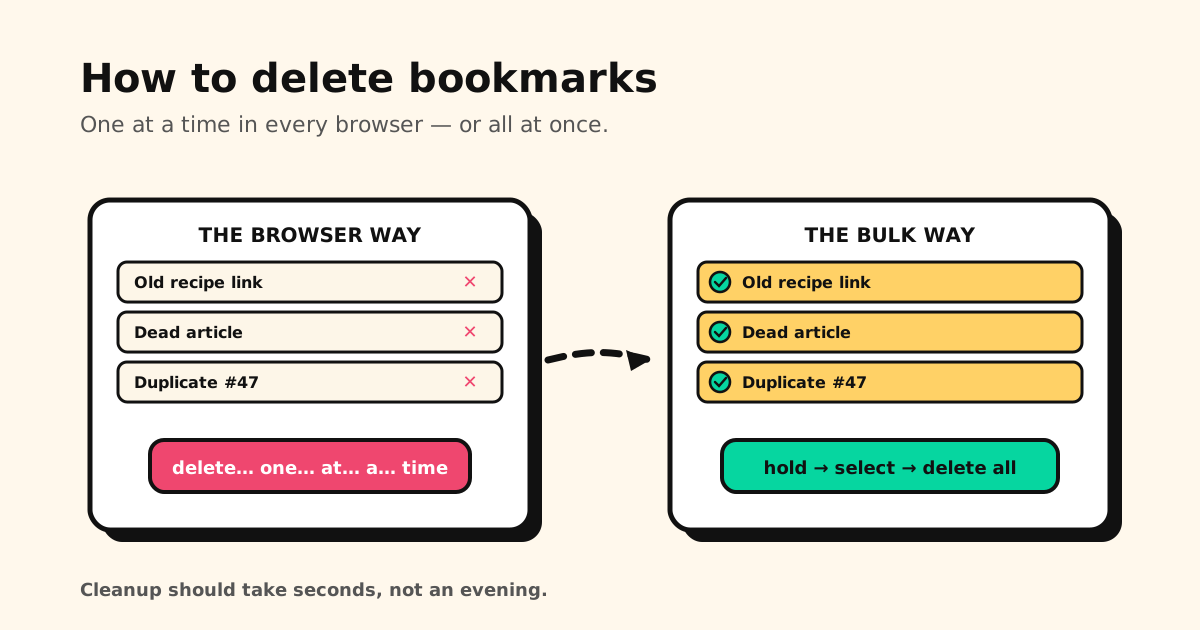
Notice the pattern — outside of Chrome desktop’s select-all, every option makes you remove links individually. With a few hundred saved links, a proper clean-out becomes an evening’s chore, so most people never do it and the pile just grows. The tool decides the habit: cleanup that costs an hour never happens.
The faster way: bulk actions — Tuckii
Tuckii is built for exactly this. Hold to select, tick as many links as you want, then move or delete them together — the multi-select cleanup browsers ration out.
- Bulk delete and move — clear 50 dead links in a few taps, not fifty. (Sharing several links at once is a Pro extra.)
- Save from any app via the share sheet, so everything lives in one place to begin with — not scattered across browsers where you have to clean each one.
- Instant search + collections to find and group before you cull.
- On your device, no account — on iPhone, iPad, Mac and Android. Free for everyday saving; an optional Pro upgrade adds sync (iCloud across your Apple devices, Google Drive across your Android devices), tags, full-collection sharing, and backup.
Clean up in bulk, not one by one
Tuckii lets you select many saved links at once and delete or move them together — on your device, no account. Free for everyday use.
Download Tuckii free →Deleted something you actually wanted? See how to recover deleted bookmarks (on Android: recovering bookmarks on Android). Want a portable copy before a big purge? Export your Chrome bookmarks first.