
Safari’s Reading List is the quiet feature people either live by or forget exists. It’s genuinely useful for one job — a queue of articles to read soon — and frustrating the moment you ask it to be more. Here’s where it lives, how to clean it out, and when to reach for something sturdier.
Quick answer: open Safari → tap the open-book icon at the bottom → tap the Reading List tab (the glasses icon) at the top. To clear it: swipe left → Delete on one item, or Edit → select → Delete for many.
Where the Reading List lives
- iPhone: Safari → the open-book (Bookmarks) icon at the bottom → the Reading List tab (glasses) at the top.
- No book icon on iPhone? Safari’s Compact tab layout (iOS 26 and later) hides it. On iOS 26, tap ⋯ → Bookmarks, then the glasses tab; on iOS 27, open a new tab and tap Reading List on the start page. The Bottom and Top layouts keep the icon — switch in Settings → Apps → Safari → Tabs.
- iPad: same icon, usually top-left.
- Mac: the Safari sidebar → the Reading List (glasses) tab.
It syncs across every device signed into the same Apple Account through iCloud, so what you add on your phone shows up on your Mac.
Reading List vs. Bookmarks — the thing that confuses everyone
They sit behind the same icon, so people mix them up. The difference is intent:
- Bookmarks are for links you’ll come back to repeatedly — you file them into folders.
- Reading List is a flat queue for “I’ll read this once, soon.” No folders, no filing.
If you tapped Add to Reading List instead of Add Bookmark, that’s why a link you “bookmarked” isn’t in your Bookmarks — it’s one tab over. Bookmarks themselves can be tidied into folders — here’s how to organize Safari bookmarks.
How to add, remove, and clear items
- Add: on any page, tap Share → Add to Reading List (or press and hold the bookmark icon).
- Remove one: swipe left on the item → Delete.
- Clear several: tap Edit, tick the items, tap Delete.
- Free up storage: offline copies live separately. To wipe them, go to Settings → General → iPhone Storage → Safari and delete the Offline Reading List.
To keep articles readable without signal, enable Settings → Apps → Safari → Automatically Save Offline (Settings → Safari on older iOS).
A queue you can’t export isn’t storage. Reading List is fine for “read this soon” and poor at “keep this”. Tuckii saves links from Safari and any other app into one searchable library on your device. Free for everyday saving, no account — and with Pro, a backup file you own.
How to export your Reading List (and why Safari won’t let you)
Safari has an export — and Reading List isn’t in it. On a Mac, File → Export Browsing Data to File hands you bookmarks, history, extensions, cards and passwords. Your Reading List is not part of that export, and there is no separate command for it. Apple simply never built one.
What Safari does give you is Save Offline, which is a different thing: it stores a readable copy of the article inside Safari so it works without a connection. Control-click an item in the sidebar (or swipe left on it) and choose Save Offline. That keeps it readable — it doesn’t get it out.
So the practical routes, worst to best:
- Save Offline, then live with it. Fine if you only want the articles readable on a flight. Nothing leaves Safari, and it all disappears with the browser profile.
- Pull it out of Safari’s own database. On a Mac, Safari keeps bookmarks and Reading List in a
single
Bookmarks.plistfile, which scripting can read — Apple Shortcuts and AppleScript workarounds exist for exactly this. It works, but it’s a one-off technical chore, not something you’ll repeat monthly. - Stop putting things you want to keep in Reading List. The only route that doesn’t need rescuing later — save them somewhere that has an export in the first place.
That third option is the honest recommendation. A queue you can’t export isn’t a place to store anything you’d miss.
Where the Reading List runs out of road
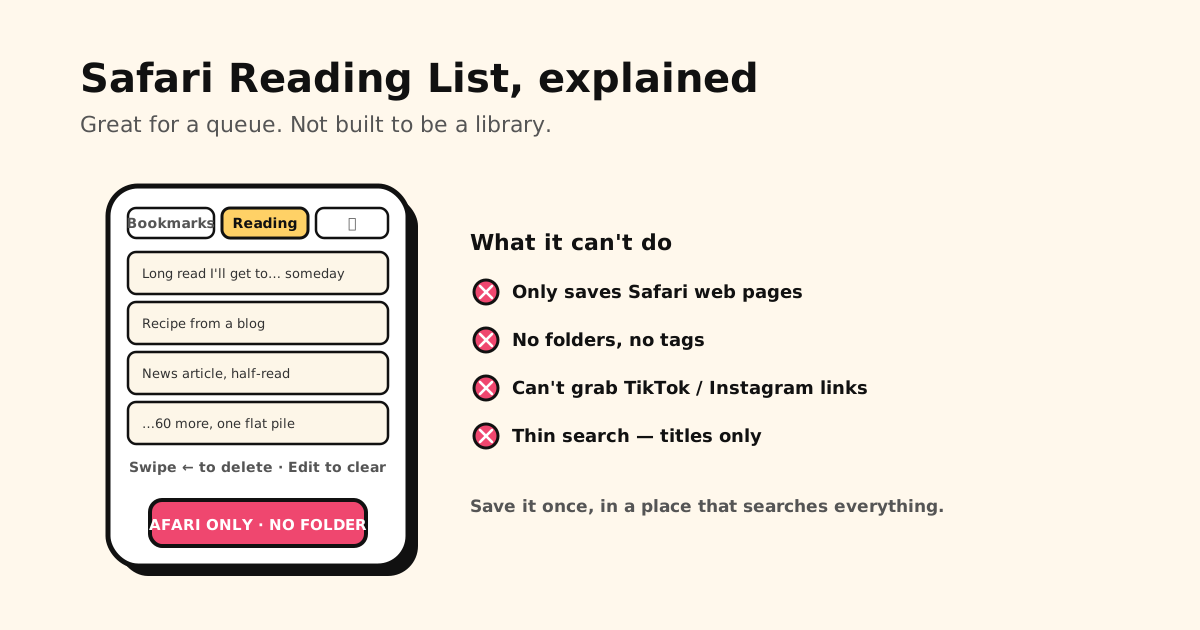
For a to-read queue it’s fine. As a place to keep things, it hits a wall fast:
- Safari only. It can’t hold a link from Chrome, and — the bigger gap — it can’t capture the links you save inside apps: a TikTok recipe, an Instagram place, a video a friend sends.
- No folders, no tags. Everything lands in one growing pile with no way to group it.
- Thin search. It matches titles, not the article’s content or your own notes.
- It’s a queue, not a library. Built for “read this soon,” not “find this again in six months.”
That’s the moment people go looking for a real home for their saved links — covered in full in the best bookmark app for iPhone.
Give your saves a real home — Tuckii
Tuckii does the job Reading List can’t: one searchable library for everything you save, from any app.
- Save from anywhere — Safari, Chrome, TikTok, Instagram, YouTube — with one tap on the share sheet, not just web pages in Safari.
- Actually findable — instant search across titles, notes, and URLs, plus collections (and tags, with Pro) so it doesn’t become another pile.
- On your device, no account — private by default, works offline, nothing tied to a cloud login.
- On your iPad and Mac too — like Reading List, it can follow you across Apple devices: with Pro, tap Sync Now and iCloud Sync brings your library along through your own private iCloud.
- Free for everyday saving; an optional Pro upgrade adds iCloud sync, tags, full-collection sharing, and backup.
A reading queue is not a library. Get both.
Keep the pages you actually want to revisit — from Safari and every app — in one searchable place on your iPhone with Tuckii. Free, no account.
Download Tuckii on the App Store →Not sure where your other saved links even are? Start with where are my bookmarks on my phone. Drowning in Safari folders already? See how to organize bookmarks on iPhone.