
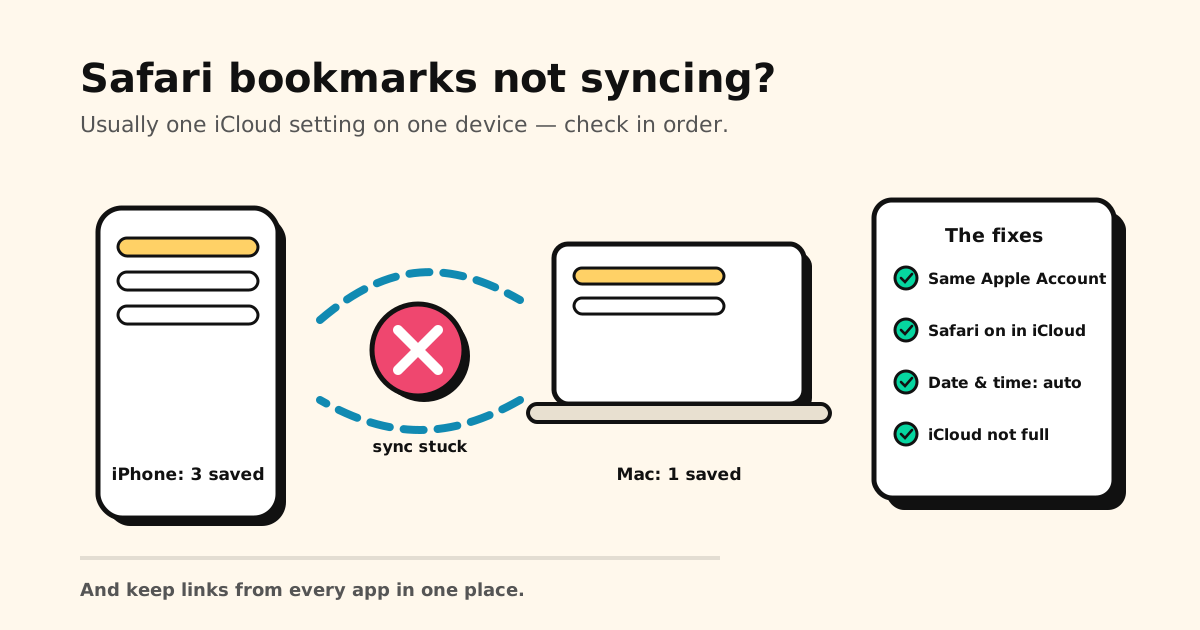
You bookmarked a recipe on your iPhone last night, and this morning your Mac has never heard of it. Or your iPad shows a folder you deleted a week ago. Safari bookmarks not syncing is almost never a broken Safari — it’s usually one setting on one device, and you can check all of them in a few minutes.
Quick answer: in order of likelihood — the devices are on different Apple Accounts, Safari is switched off in iCloud settings on one of them, the date and time are wrong, or iCloud storage is full. Fix those, then turn Safari off and back on in iCloud settings to force a fresh sync.
How Safari sync is supposed to work
Safari keeps a copy of your bookmarks on every device and one in iCloud. When Safari is turned on in iCloud settings, each device sends its changes up and pulls the others down — bookmarks, Reading List and Tab Groups included. When sync stops, nothing is usually lost: the copies have simply stopped agreeing. So the fixes below are about reconnecting the devices first, and only then about recovering anything.
The 8 fixes, in order
1. Same Apple Account on every device
The most common cause. Open Settings → your name on the iPhone and iPad, and System Settings → your name on the Mac, and compare the email shown. A work Mac on a different Apple Account syncs perfectly — to a different iCloud.
2. Safari is turned on in iCloud
Every device has its own switch, and one that’s off is enough to break the chain:
- iPhone or iPad: Settings → your name → iCloud → See All (or Show All), then turn on Safari.
- Mac: System Settings → your name → iCloud → See All (or Show More Apps), then turn on Safari.
The exact labels move around a little between iOS and macOS versions, but Safari is always in the list of apps using iCloud.
3. Turn Safari off and back on
If Safari is already on everywhere, turn it off on the device that’s behind, wait a few minutes, and turn it back on — this is Apple’s own first fix for a stuck sync. If your device asks what to do with the Safari data already on it, choose to keep it, so nothing is removed while sync restarts.
4. The date and time are right
Wrong date and time settings quietly break iCloud. On the iPhone and iPad, go to Settings → General → Date & Time and turn on Set Automatically. On the Mac, the same option is in System Settings → General → Date & Time.
5. iCloud storage isn’t full
Bookmarks are tiny, but a full iCloud account stops more than photo uploads: iCloud apps stop staying up to date across your devices. Check Settings → your name → iCloud. If the bar is full, free some space (old device backups are usually the biggest win) or add storage, then give Safari a few minutes to catch up.
6. iCloud itself is up — and you’re online
Before you blame your settings, look up iCloud Bookmarks & Tabs on Apple’s System Status page. If it shows an issue, wait it out. If everything is green, make sure the device that’s behind is actually online — not stuck on a captive Wi-Fi page or with cellular data turned off for Safari.
7. Restart Safari, then the device, and update
Quit Safari completely and reopen it. Then restart the iPhone, iPad or Mac. While you’re there, install the latest iOS, iPadOS or macOS update: very old versions can’t sync bookmarks at all, and newer ones fix sync bugs.
8. On a Mac: check your Safari profiles
Safari profiles look like a sync problem but aren’t. Bookmarks are shared by every profile, but each profile can point its Favorites bar at a different folder. If your Favorites look different on the Mac than on the iPhone, check which favorites folder that profile uses (Safari → Settings → Profiles). One more Mac-sized quirk: if a single folder holds more than 500 bookmarks, Apple says the order can differ between devices even though the bookmarks themselves sync.
Before you delete anything: if one device shows bookmarks the others don’t, don’t “clean up” the extra copy while sync is broken. Fix the connection first — otherwise the deletion is the change that syncs everywhere.
If the bookmarks are actually gone
Different problem. If bookmarks were deleted — by you, by a sync that went the wrong way, or after setting up a device — reconnecting won’t bring them back. Go to icloud.com/recovery, choose Restore Bookmarks and pick an earlier version; Apple keeps bookmarks deleted within the last 30 days, and the restored set lands on every device that syncs Safari. The step-by-step, with Chrome and Firefox too, is in how to recover deleted bookmarks. Moving to a new iPhone rather than fixing an old one? See how to transfer bookmarks to a new phone. Using Chrome instead of Safari? The checklist is different: Chrome bookmarks not syncing.
What Safari sync never covered: links from your apps
Even when Safari sync works perfectly, it only syncs what you saved in Safari. The TikTok recipe, the Instagram place, the YouTube video and the link in a group chat never reach Safari bookmarks at all — on any device. That’s usually the bigger gap.
Tuckii fixes that: every link you save, from any app, in one library that’s on all your Apple devices.
- Save from any app in one tap — tap Share → Tuckii in Safari, TikTok, Instagram, YouTube or Messages, and the title and preview come along.
- Always there. Your library lives on your device, so it opens instantly, works offline, and never vanishes because a sync stalled. No account to sign in to.
- On your iPhone, iPad and Mac (Pro). One tap on Sync Now and everything you saved — links, notes, collections, tags and images — is on all your Apple devices, through your own private iCloud. Tuckii never sees your library.
- Bring your Safari bookmarks along. On a Mac, File → Export Browsing Data to File (tick Bookmarks) saves a .zip with your bookmarks as an HTML file inside; unzip it and import the HTML file under Settings → Backup & Restore → Import Bookmarks. The free plan imports a starter batch; Pro imports the whole file.
Tuckii is free to download and free for everyday saving; Tuckii Pro adds iCloud Sync, tags, full-collection sharing and backup when you want more.
One library for links from Safari and every app
Save from any app in one tap, find anything in seconds, and open it all on your iPad and Mac with iCloud Sync (Pro). Free to start, no account needed.
Get Tuckii on the App Store →Comparing apps for the bigger screens too? See the best bookmark app for iPad & Mac, or start with how to organize Safari bookmarks on iPhone, iPad & Mac.