
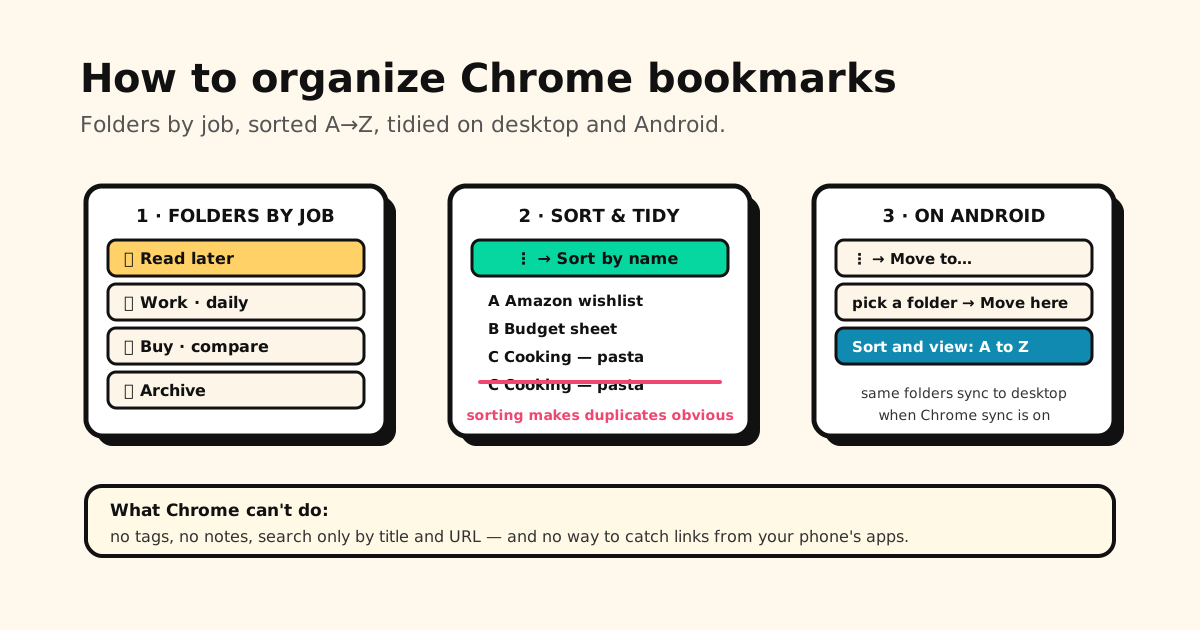
Quick answer: open the Bookmark Manager (Ctrl+Shift+O, or Cmd+Option+B on Mac), make a few folders named after what you’ll do with the links — Read later, Work, Buy, Archive — drag your bookmarks in, then use ⋮ → Sort by name inside each folder. Keep the bookmarks bar for the five or six sites you open every day. On Chrome for Android, the same folders are under ⋮ → Bookmarks, with Move to… and Sort by A to Z.
That’s the whole system. The rest of this guide is how to do each step quickly — and where Chrome runs out of road.
Step 1: Open the Bookmark Manager
Everything is easier from the full manager than from the bar or menu:
- Shortcut: Ctrl+Shift+O on Windows, Linux and ChromeOS; Cmd+Option+B on Mac.
- Menu: More ⋮ → Bookmarks and lists → Bookmark Manager.
- Address bar: type
chrome://bookmarks.
Folders are on the left, the open folder’s contents on the right, and a search box at the top that matches bookmark titles and URLs.
Step 2: Create folders by job, not by topic
The reason most bookmark folders turn into a graveyard is that they’re named by topic — Design, Health, Tech — so every new link could go in three places, and none of them is where you’d look. Name folders by what you’ll do next instead:
| Folder | What goes in it |
|---|---|
| Read later | Articles you’ll get to this week |
| Work · daily | Dashboards, docs and tools you open every day |
| Buy · compare | Products you’re deciding between |
| Reference | Things you look up again and again |
| Archive | Everything you want to keep but don’t need now |
To make one: in the Bookmark Manager, open More ⋮ (top right) → Add new folder. Or right-click the bookmarks bar → Add Folder. Keep it to one level of subfolders — deeper trees are where links go to be forgotten.
Step 3: Move bookmarks into folders
- Drag a bookmark onto a folder in the left panel.
- Select several at once: hold Ctrl (Cmd on Mac) and click, or Shift-click a range, then drag them together.
- From the bar or menu: click More ⋮ next to a bookmark → Edit, pick the folder, then Save.
Copy and paste works too, if you’d rather keep a link in two folders.
Step 4: Sort by name and clear out duplicates
Inside any folder, choose More ⋮ → Sort by name. It sorts the folder you have open, so do it folder by folder.
Alphabetical order has a useful side effect: duplicates end up next to each other. Chrome has no duplicate finder, so this is the fastest manual way to spot the three copies of the same recipe and delete two. While you’re there, open anything you don’t recognize — if it’s a dead page, delete it. (Deleting a lot at once? Here’s how to bulk delete bookmarks, and how to get one back if you go too far.)
Step 5: Make the bookmarks bar earn its space
The bar is prime real estate, so treat it like a home screen:
- Daily sites only. Five or six, not fifty. Everything else lives in folders.
- Icon-only bookmarks. Edit a bookmark and clear its name — the bar then shows just the site icon, so far more fit across the top.
- Folders on the bar. One Work folder on the bar opens as a drop-down, which beats ten separate buttons.
- Separators (workaround). Chrome has none built in. The usual trick is a bookmark named with a
single | or — pointing at
about:blank, dropped between groups.
Bar hidden, or stuck showing when you don’t want it? See how to show or hide the Chrome bookmarks bar.
Missing or wrong bookmark icons
Chrome doesn’t let you pick a bookmark’s icon — it uses the site’s own favicon. If icons turn into blank globes (often after a sync or an import), opening the site again usually brings its icon back.
Organize Chrome bookmarks on Android
Chrome for Android has the same folders as desktop (when sync is on), with phone-sized controls:
- Tap More ⋮ → Bookmarks. (If your address bar is at the bottom, you can also swipe up on it and tap Bookmarks.)
- New folder: tap Create new folder.
- Move a bookmark: tap More next to it → Move to… → pick a folder → Move here.
- Rename or change the address: More → Edit.
- Sort: tap Sort and view options and choose A to Z, Newest, Oldest or Last opened — or keep manual order.
Can’t find a bookmark you made on your phone? It may be in Mobile bookmarks rather than the bookmarks bar, or saved only on this device rather than in your Google Account — here’s where Chrome actually stores them. If they’re not showing up on your other devices at all, sync is the usual culprit.
Saving a pile of open tabs before you close them? Chrome can bookmark all tabs at once — on desktop and Android.
Where Chrome bookmarks stop working
Even a tidy bookmark tree has limits that no amount of folders will fix:
- No tags. A link lives in exactly one folder, so a recipe can’t be both Dinner and Try this week.
- Search sees titles and URLs only. If you don’t remember the page’s name, you won’t find it.
- No notes. There’s nowhere to write why you saved something.
- It only catches what you open in Chrome. The TikTok video, the Instagram post, the Reddit thread and the link a friend sent in WhatsApp never make it into your bookmarks unless you open each one in Chrome first.
On a computer, that last one rarely matters. On your phone, it’s most of what you save.
For the links you save on your phone
That’s the gap Tuckii fills. It isn’t a Chrome extension and doesn’t replace your desktop bookmarks — it’s an app for iPhone and Android that keeps the links you save on your phone in one place:
- Save from any app with the share sheet — Chrome, TikTok, Instagram, Reddit, YouTube, messages.
- Collections the way you think (the same “by job” idea as above), and instant search across everything.
- No account — your library stays on your device.
- Bring old bookmarks along: export your Chrome bookmarks as an HTML file (here’s how), then use Settings → Backup & Restore → Import Bookmarks in Tuckii. The free plan imports a starter batch; Pro imports the whole file and adds tags, sharing and backup.
Your phone’s links, finally in one place
Save from any app, sort into collections, find anything in seconds. No account — it all stays on your device.
Download Tuckii free →On Android specifically? See the best bookmark app for Android and where Android hides your bookmarks. On an iPhone, here’s how to organize Safari bookmarks.