
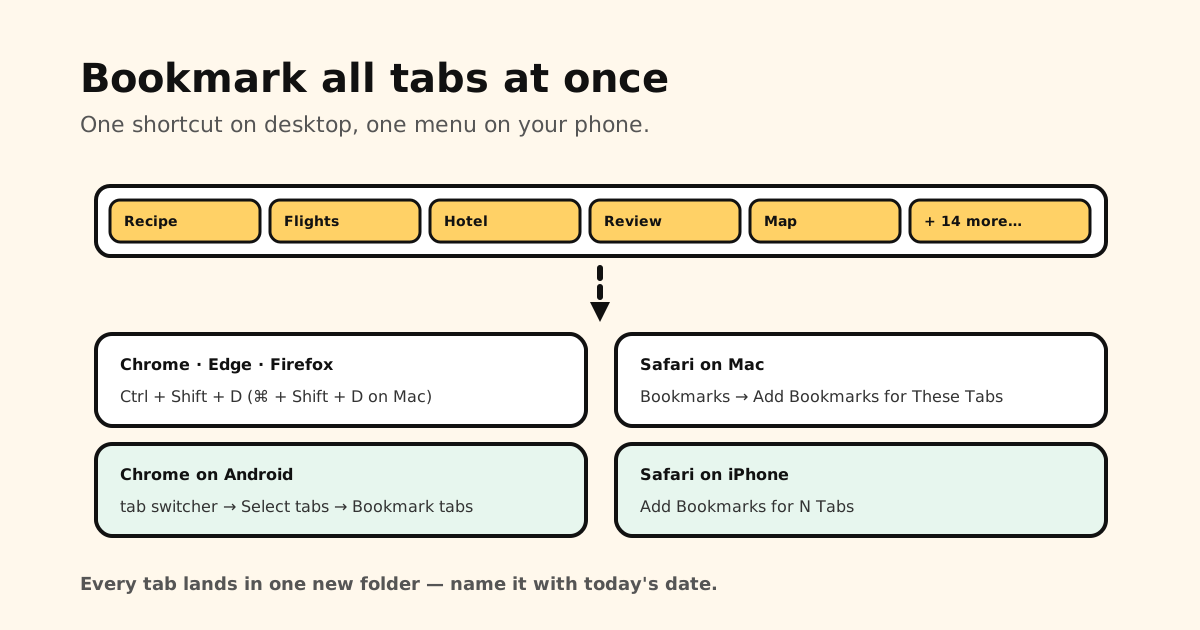
Quick answer: press Ctrl+Shift+D (Cmd+Shift+D on Mac) in Chrome, Edge or Firefox — every tab in the window goes into one new bookmarks folder. On Safari for Mac, use Bookmarks → Add Bookmarks for These Tabs. Phones can do it too: Chrome on Android via Select tabs → Bookmark tabs, and Safari on iPhone via Add Bookmarks for N Tabs.
Bookmark all tabs in Chrome
Three ways, same result:
- Shortcut: Ctrl+Shift+D (Windows, Linux, ChromeOS) or Cmd+Shift+D (Mac).
- Tab menu: right-click any tab → Bookmark all tabs.
- Main menu: More ⋮ → Bookmarks and lists → Bookmark all tabs.
Chrome asks for a folder name and a location. Use the date or the task — Kitchen reno — Oct 5 — so future-you knows what it was. It only saves tabs from the current window, so repeat it in each window you want to keep.
Prefer to keep tabs open but tidy? Chrome’s tab groups are the alternative: right-click a tab → Add tab to new group, and you can save the group to come back to later.
Microsoft Edge
Press Ctrl+Shift+D (Cmd+Shift+D on Mac) to save all open tabs as favorites in a new folder, or right-click a tab and choose to add all tabs to favorites.
Firefox
Press Ctrl+Shift+D (Cmd+Shift+D on Mac) to bookmark all tabs in the window. To save just some of them: right-click a tab → Select All Tabs (or Ctrl/Cmd-click the ones you want), then right-click again → Bookmark Tabs…, name the folder and Save.
Safari on Mac
Choose Bookmarks → Add Bookmarks for These Tabs in the menu bar. Safari puts them all in a new folder you can name.
Chrome on Android
Yes, the phone app can do it:
- Open the tab switcher (the square with the tab count).
- Tap More ⋮ → Select tabs — or touch and hold a tab.
- Pick the tabs you want, or use Select all from the menu.
- Tap More ⋮ → Bookmark tabs.
They land in your bookmarks, ready to sort — here’s how to organize them on Android.
Safari on iPhone
Safari can save every open tab as bookmarks in one new folder. Where the option lives depends on your tab layout:
- Bottom or Top layout: touch and hold the Bookmarks (book) button → Add Bookmarks for N Tabs.
- Default (compact) layout: open the tab overview (••• next to the address bar → All Tabs), then use its ••• menu → Add Bookmarks for N Tabs.
Name the folder, choose where it goes, and tap Save.
Reopen all the tabs later
- Chrome: right-click the folder (on the bookmarks bar or in the Bookmark Manager) → Open all, Open all in new window, or Open all in Incognito window.
- Edge and Firefox: right-click the folder for the same open-all options.
- Safari on Mac: right-click (Control-click) the folder → Open in New Tabs.
Don’t let the folder become a graveyard
Bookmarking 30 tabs to close them feels productive. Six months later it’s a folder called Tabs — March that you’ll never open. Two minutes now saves that:
- Delete the dead weight right away — search results, logins, things you’ve already read.
- Move the keepers into folders named by what you’ll do: Read later, Buy, Work.
- Delete the dated folder once it’s empty.
More on that system in how to organize Chrome bookmarks, and how to bulk delete when a folder is beyond saving.
On your phone, most links aren’t in tabs
On a phone, the things you want to keep usually aren’t browser tabs at all — they’re the video in TikTok, the post in Instagram, the thread in Reddit, the link in a group chat. Tuckii catches those: share from any app, drop the link into a collection, and find it again with search. It’s an app for iPhone, iPad, Mac and Android, with no account, and your links stay on your device.
Keep the links that matter — from any app
Share links and screenshots to Tuckii, sort them into collections, and find anything in seconds. No account needed.
Download Tuckii free →