
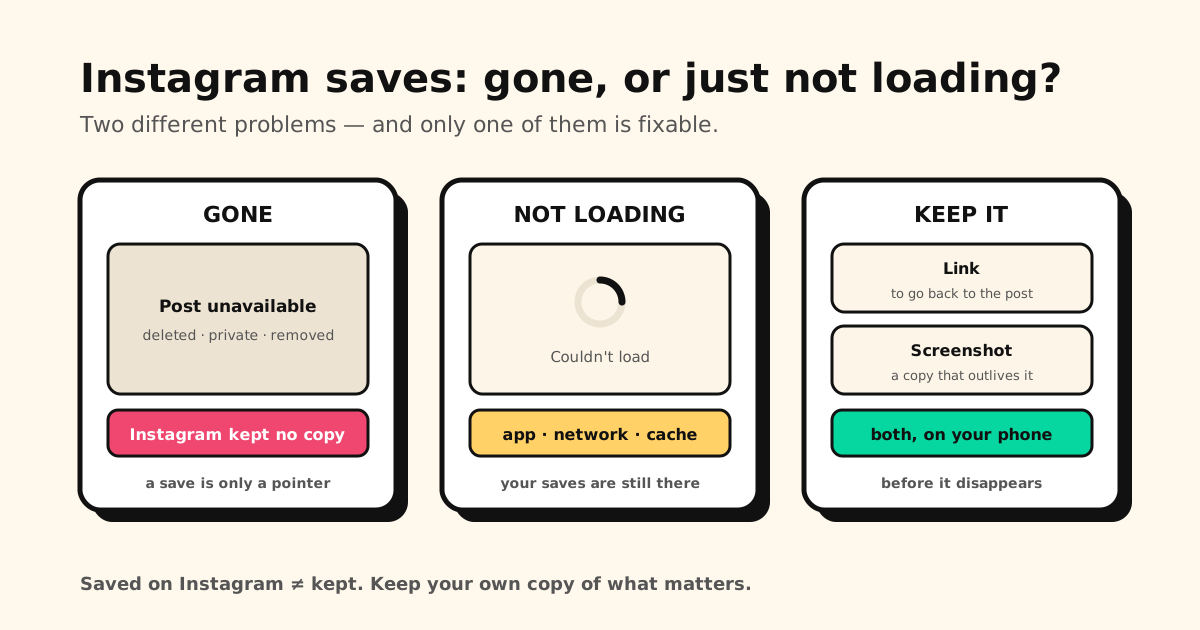
Opened Instagram’s Saved tab and something’s missing — or nothing loads at all? Those are two different problems. Saves that are gone disappeared because the post or account changed, and Instagram keeps no copy for you. Saves that won’t load are almost always an app, network or cache problem, and your saves are still there.
Quick answer: if specific posts vanished or show as unavailable, the post was deleted, the account went private, or Instagram removed it — there’s nothing to restore. If the whole Saved tab is blank or spinning, check your connection, update and restart Instagram, and (on Android) clear its cache. And for the posts you can’t afford to lose: take a screenshot, because a save is only a pointer.
Wondering whether anyone can see what you save? That’s a different question — see can people see what you save on Instagram?
First: gone, or just not loading?
A quick look tells you which problem you have:
- Everything is blank, stuck loading, or says it couldn’t load → a loading problem. Jump to the fixes.
- Most saves are fine, but some are missing or show as unavailable → those posts are gone at the source. Read on.
Your saved posts live at profile → ☰ menu → Saved. All posts holds every save; any Collections you made are listed alongside it.
Why Instagram saved posts disappear
When you tap the bookmark icon, Instagram doesn’t keep a copy of the post — it keeps a pointer to someone else’s post. The save only works as long as that post is there for you to see. It stops working when:
- The person deletes the post (or takes it down).
- The account goes private and you don’t follow it.
- The account is deactivated, deleted or banned.
- Instagram removes the post, for example for breaking its rules.
In each case the save disappears or shows as unavailable, with no warning. There’s no recently-deleted folder for saves and nothing to restore. The only way it comes back is if the post does — the account goes public again, or you follow a private account and are accepted.
Saved posts not loading? Fixes in order
If the whole Saved tab won’t load, your saves haven’t gone anywhere — they’re stored with your Instagram account, not on your phone. Work down this list:
- Check the connection. Switch between Wi-Fi and mobile data, or turn Airplane mode on for ten seconds and off again.
- Check whether Instagram is down for everyone. If it is, wait it out.
- Force-close Instagram and reopen it.
- Update the app from the App Store or Google Play.
- Clear the cache. On Android: Settings → Apps → Instagram → Storage → Clear cache. This removes temporary files only; your saves and collections are untouched. iPhone has no cache button — deleting and reinstalling Instagram does the same job, and your saves come back when you log in.
Can’t find a saved post? There’s no search
Instagram’s Saved tab has no search box. Saves sit in one reverse-chronological grid, so an older save means a lot of scrolling. Two things help:
- Collections. Press and hold the bookmark icon on a post to save it straight into a collection, or make one with the + in Saved and add existing saves to it.
- Instagram’s main search. If you remember who posted it, search their handle and look through their posts.
A save is a pointer, not a copy. The moment a post comes down, your save goes with it. Tuckii keeps the link and a screenshot of the post on your own phone, side by side and searchable — so the screenshot is still there after the post is gone. Free, no account.
Get a list of your saves out (before more vanish)
Instagram lets you download your data, and saved posts are included:
- Go to profile → ☰ menu → Accounts Center.
- Tap Your information and permissions → Download your information (some versions say Export your information).
- Create an export, pick your Instagram account and export to your device. Choose All time, and JSON or HTML.
- Wait for Meta’s email — often within an hour, sometimes much longer. The download link only works for a few days.
- In the archive, open the saved posts file.
Know what you’re getting: for each save, the file lists the account, a link back to Instagram, and when you saved it. It does not include the photos, videos or captions — those belong to other people. Anything that already disappeared won’t be in there either. It’s a record of what you saved, not a backup of what was in it.
Keep the ones that matter: a link and a screenshot
For the posts you really want to keep — a recipe, a workout, a travel tip — save them outside Instagram, in two ways:
- The link, to go back. On the post, tap Share → Tuckii. The link and its preview land in one library on your device, next to what you saved from TikTok, YouTube or your browser.
- A screenshot, to keep. Screenshot the post, tap Share → Tuckii. The screenshot is a real copy, so it’s still there if the post is deleted or the account goes private. Tuckii doesn’t read the text in images, so give it a name or a note — that’s what search looks for. (How to share a screenshot on iPhone and Android: save links and screenshots from any app.)
Everything stays on your phone with no account. Tuckii is free for everyday saving; the free plan includes a limited number of images, and an optional Pro upgrade removes that limit and adds tags, sharing and backup.
Keep the posts worth keeping
Save the link and a screenshot of anything you’d hate to lose — one searchable library on your phone, next to everything you save from other apps. Free, no account.
Download Tuckii free →The same thing happens on Facebook — see why Facebook saved posts disappear. And on Reddit, saves don’t vanish but older ones become unreachable: Reddit saved posts and the 1,000 limit.