
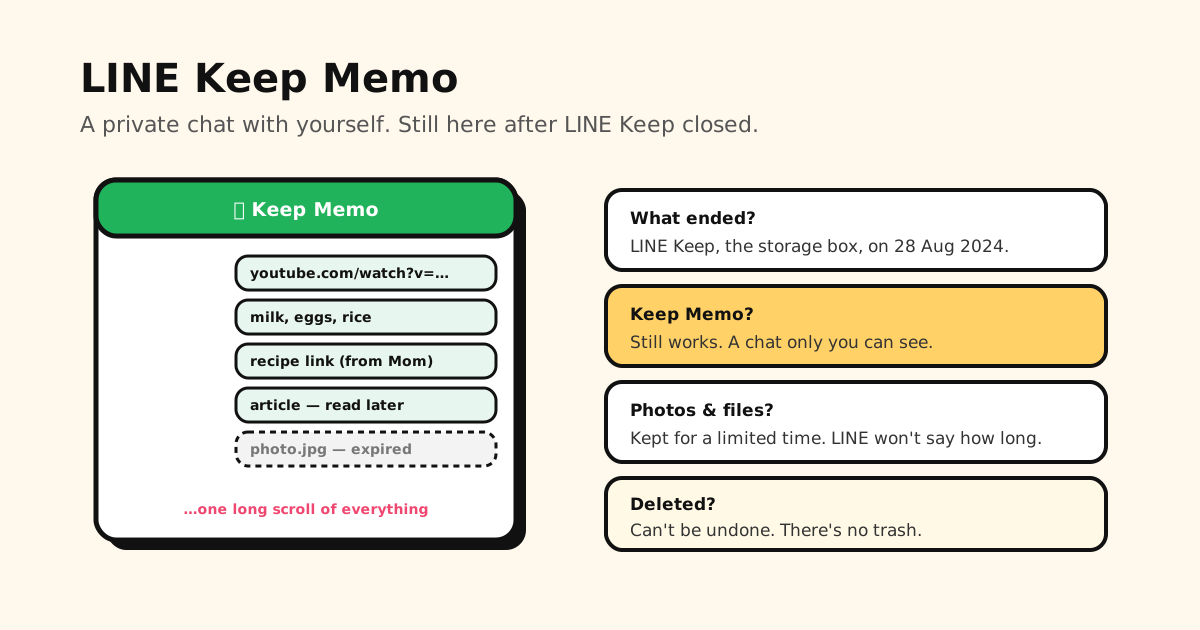
Quick answer: Keep Memo is still here. What LINE shut down on 28 August 2024 was Keep, the separate storage box, and LINE’s notice said Keep Memo would keep working. Keep Memo is a chat with yourself that only you can see. Open it from Home → your profile → Keep Memo, or find it in your chat list like any other chat. The one catch: photos, videos and files are kept on LINE’s servers only for a limited time, and LINE doesn’t say how long.
Here’s how to find it, use it, and keep it from turning into a bottomless scroll.
Keep vs. Keep Memo: what actually ended
People mix these two up all the time, and old guides make it worse.
- LINE Keep was a storage box you opened from a Keep icon on the Home screen. LINE ended it on 28 August 2024 and asked everyone to download their items before then.
- Keep Memo is a chat room with yourself. It was never part of the shutdown: LINE’s notice said Keep Memo stays available after Keep ends.
So if a guide (or a search engine’s AI answer) tells you to “save it to Keep” for long-term storage, it’s out of date. That option is gone. Keep Memo is what’s left.
One more mix-up: Google Keep is a different app, Google’s notes app. Search “keep memo” and you’ll often get Google Keep. It has nothing to do with LINE.
Where to find Keep Memo
- On any phone: Home tab → your profile → Keep Memo.
- In your chat list: it’s a chat called Keep Memo. If it’s buried, tap the search icon at the top of the Chats tab and type Keep.
- Outside Japan, Taiwan and Thailand: there’s also a Keep Memo icon (a bookmark) at the top of the Home tab.
- From inside a chat: tap + at the bottom → Keep Memo.
- LINE on Windows or Mac: click the Keep Memo icon at the bottom of the main menu.
Still can’t see it? LINE’s help says to update LINE first. If that doesn’t do it, you probably hid it. See below.
How to save things to Keep Memo
- Type or paste into the chat: text, links, photos, videos and files all work.
- From another chat: tap and hold the message → Keep Memo → Send.
- From another app or website: tap the share icon → LINE → Keep Memo → Share.
- On Windows or Mac: click Send to Keep Memo under an item, or right-click it.
Pin, hide and unhide Keep Memo
- Pin it to the top: on iPhone or iPad, swipe right on the Keep Memo chat and tap the pin icon. On Android, tap and hold it → Pin chat. On a computer, right-click it → Pin chat.
- Hide it: on iPhone or iPad, swipe left → Hide. On Android, tap and hold → Hide.
- Bring it back: Home tab → Settings → Chats → Hidden chats, then tap Edit next to Keep Memo → Unhide chat.
How to find something in Keep Memo
Keep Memo has no folders, so finding things comes down to three tools:
- Search inside the chat: tap the search icon at the top and type a word you remember.
- Jump to a date: while searching, tap the calendar icon to see everything from one day.
- Browse by type: tap the menu icon at the top. Tabs sort your photos and videos, files and links, so you can scan just the links.
That’s the whole toolkit. You can’t rename Keep Memo, make a second one, or use Notes and Albums in it the way you can in a group, which is why some people make a “group” with only themselves in it.
How long does Keep Memo keep things?
LINE’s help is direct about this: photos, videos and other files sent in chats, Keep Memo included, are saved on LINE’s servers only for a certain amount of time. After that, you can’t view or download them. LINE doesn’t disclose how long that is.
So treat Keep Memo as a scratchpad, not an archive. To save a file to your phone: Home → your profile → Keep Memo → menu icon at the top → pick the tab → tap the item → tap the download icon.
Switching phones? Keep Memo is a chat, so it lives in your chat history. LINE’s backup pages don’t mention Keep Memo by name, so back up your chat history before you move, like you would for any chat you care about.
Can anyone else see your Keep Memo?
No. LINE calls it a personal chat that only you can see, and forwarding a message there copies it into that private chat. Two honest caveats: anyone who can open LINE on your unlocked phone can open Keep Memo too, and your files sit on LINE’s servers like any other chat.
Deleting from Keep Memo (and why you can’t undo it)
Tap and hold an item → Delete or Unsend.
- Delete removes it only on the device you’re using. Use LINE on a computer too? It stays there.
- Unsend removes it everywhere, but only within the time limit after sending.
Either way, LINE says it can’t be undone. There’s no trash folder to dig it out of.
When Keep Memo becomes your link dump
Keep Memo is great for a grocery list or a note to yourself. Where it struggles is links. Paste in a recipe, a video, a shop page and an article a day, and within a month they’re buried between screenshots and to-dos. No folders, no titles you chose, and finding that one recipe means remembering a word from it, or scrolling.
If most of what you send yourself is links, Tuckii gives them a proper home:
- Share from any app: wherever you find a link (Safari, Chrome, YouTube, TikTok, Instagram), tap Share → Tuckii instead of sending it to yourself. It arrives with its title and preview.
- Collections like Recipes, Trips or Read later, instead of one endless chat.
- Instant search that checks titles, descriptions, your own notes and the link itself.
- Pin the links you open every week, and add a note so you remember why you saved it.
- No account. Your library lives on your phone, not on a company server, and nothing expires on a server you don’t control.
- Free for everyday saving. An optional Pro upgrade adds tags, backup and sync: one tap on Sync Now puts your library on your iPhone, iPad and Mac through iCloud, or on your Android phones and tablets through Google Drive.
Good to know: Tuckii doesn’t import your LINE history. Start fresh with new links, and re-save the few old ones that still matter. Keep using Keep Memo for quick notes; give your links a place that’s built for finding them again.
Stop scrolling your Keep Memo for that one link
Share links from any app to Tuckii instead of sending them to yourself, sort them into collections, and find any of them in seconds. No account needed.
Download Tuckii free →Use more than one chat app as a notepad? Telegram’s Saved Messages works much the same way, with the same problem. To save from everywhere, here’s how to save links from TikTok, Instagram and any app, and if you’re choosing a dedicated tool, see the best app for saving links.