
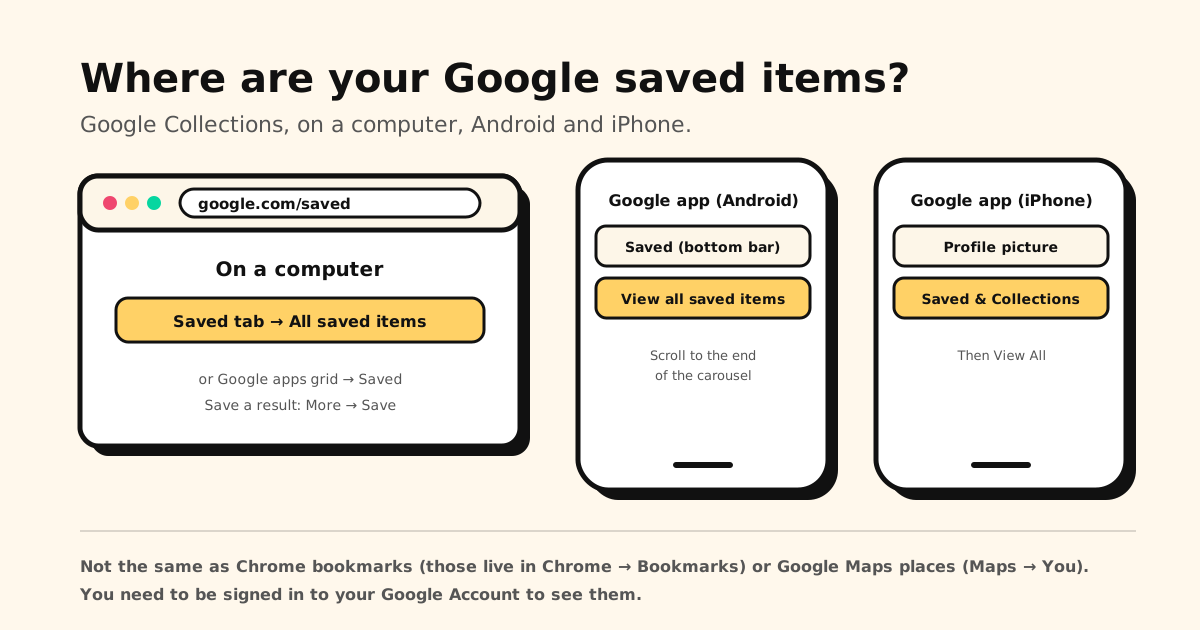
Quick answer: your Google saved items are on Google’s Interests page at google.com/saved (open the Saved tab, then All saved items). In the Google app on Android, tap Saved at the bottom; on iPhone or iPad, tap your profile picture → Saved & Collections. You need to be signed in to the Google Account you saved them with.
Below: how to find, add, organize, share and delete Google saved items on a computer, Android and iPhone, and why they’re not the same thing as your Chrome bookmarks.
Where Google saved items are, at a glance
| Where you are | Find your saved items | Save something |
|---|---|---|
| Computer (any browser) | google.com/saved → Saved tab → All saved items | Open a result → More → Save |
| Google app on Android | Saved (bottom) → View all saved items | Open a result → Save at the top |
| Google app on iPhone or iPad | Profile picture → Saved & Collections → View All | Open a result → Save at the top |
| Google Maps | Maps app → You | Saved places and lists stay in Maps |
| Chrome | ⋮ → Bookmarks and lists on a computer, More → Bookmarks on a phone (these are Chrome bookmarks, not Google saves) | The star, or Ctrl+D / ⌘+D |
What Google Collections are
When you tap Save on something in Google Search or the Google app, Google keeps it in your account. You can save web pages, images, places, recipes, shows and movies. Collections are the folders those saves go into: you make your own, and Google creates a few itself, such as Cookbook and Watchlist.
Everything lives on Google’s Interests page, which has three tabs: Liked, Saved (your collections and saved items) and Followed (topics you follow). Only signed-in users get one.
How to find your Google saved items
On a computer:
- Go to google.com/saved. (Or, on google.com, click the Google apps grid at the top right and choose Saved.)
- Under the Saved tab, click All saved items to see everything, including items that aren’t in a collection.
In the Google app on Android:
- Open the Google app and tap Saved at the bottom.
- Scroll to the end of the carousel and tap View all saved items.
In the Google app on iPhone or iPad:
- Open the Google app and tap your profile picture or initial at the bottom right.
- Tap Saved & Collections, then View All for the full list.
How to save something to Google Collections
- Computer: search on Google, click the result you want, then at the top click More → Save. No Save option? Sign in first.
- Android: in the Google app, search, tap the item and tap Save at the top. For an article or web page, you can also tap More next to it and Save under “More Options”, without opening it. For an image, tap it, then More → Save.
- iPhone or iPad: in the Google app, search, tap the item and tap Save at the top.
New saves go into your most recent collection. Tap Edit (Change on a computer) to pick a different one, or make a new one.
Saving a link directly: at google.com/saved, open All saved items and click Add → Add a link. In the Android app it’s Saved → All saved items → Add → Link. On Android you can also save from other apps: tap Share on a link and choose Saved as the destination.
How to make, rename and share a collection
- Make one: at google.com/saved, under the Saved tab, click Create and start from a link, from items you’ve already saved, or from a blank collection. Name it and click Done. In the Android app, tap Saved → Create.
- Rename one: open it, then More → Edit at the top, or tap the title. Google’s own collections (Cookbook, Watchlist) can’t be renamed.
- Move items: open a collection, tap Select, pick items, then Move to a collection (removes them from this one) or Add to a collection (keeps them here too).
- Share one: open it, tap Share, turn on Sharing, and choose a Contributor link (others can edit) or a View only link.
How to delete Google saved items and collections
- Delete a saved item everywhere: on a computer, go to All saved items → Select, choose the items and click Remove. In the Google app, open View all saved items and tap More → Remove on the item. This deletes it from every collection and from your account.
- Take it out of one collection only: open the collection, tap Select, choose the items and tap Delete.
- Delete a whole collection: open it, then More → Delete (Delete collection on iPhone). You can delete collections you made or that were shared with you, but not Cookbook or Watchlist.
Google saved items vs Chrome bookmarks
These get mixed up all the time, especially by anyone looking for their “favorites on Google”:
| Saved from | Where to find it | Account needed? | |
|---|---|---|---|
| Google saved items | Google Search and the Google app | google.com/saved, or Saved in the Google app | Yes, your Google Account |
| Chrome bookmarks | Pages you star in Chrome | Chrome’s Bookmarks menu | No; sign in to sync them |
| Google Maps places | Google Maps | Maps app → You | Yes, your Google Account |
| Tuckii | Any app, via Share | The Tuckii app, with search | No; stored on your device |
So if a page you saved “on Google” isn’t at google.com/saved, it’s probably a Chrome bookmark: here’s where Chrome keeps your bookmarks on a computer and phone. Bookmarked it on your phone? This covers where your bookmarks are on iPhone and Android.
Why saved links end up scattered
Google keeps what you save in Google, Chrome keeps what you star in Chrome, and every app keeps its own Save button: TikTok, Instagram, Reddit, YouTube. A month later, the recipe you saved could be in any of them.
Tuckii puts those links in one place:
- Share → Tuckii from any app, on iPhone or Android. Google, Chrome, TikTok, Instagram, Reddit: if it has a Share button, it works. The title and preview come along.
- Collections, tags and instant search. Free for everyday use, tags included.
- No account. Your library lives on your device, not in an online account.
- With Pro: sub-collections, sharing a whole collection, a backup file, and Sync Now through your own iCloud on iPhone, iPad and Mac, or your own Google Drive across Android devices.
One place for links from Google and every other app
Save from Google, Chrome, TikTok, Instagram and anywhere else with Share → Tuckii, then find any link in seconds. Free for everyday use, no account.
Download Tuckii free →Comparing options? Here’s our roundup of the best app for saving links. New to bookmarks? Start with how to bookmark a website.