
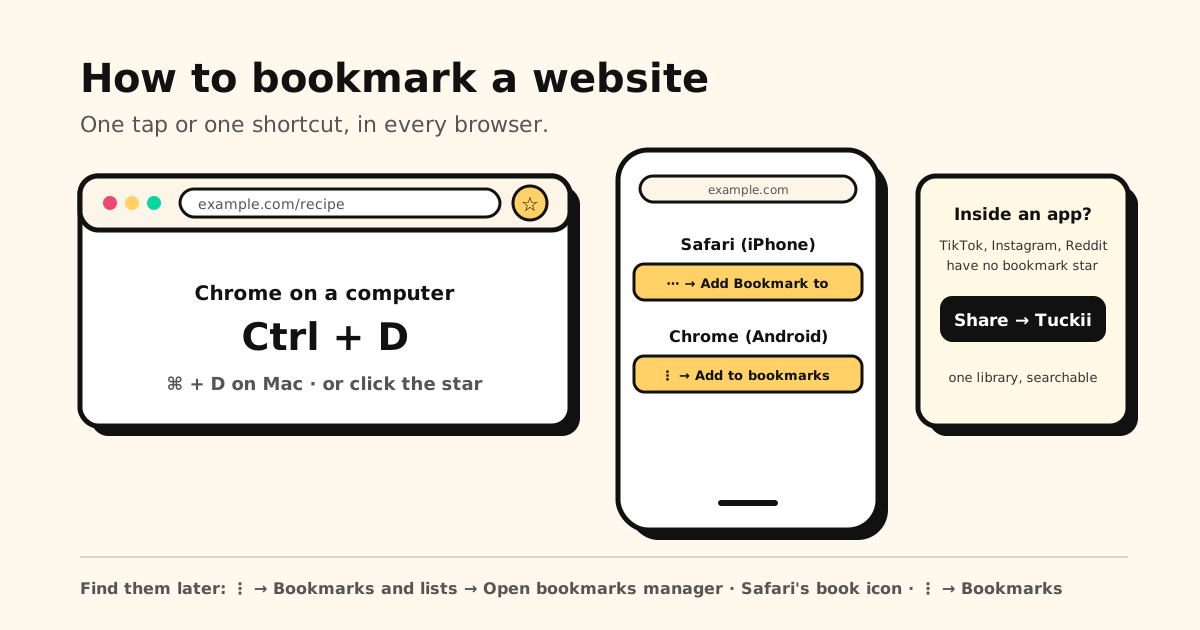
Quick answer: open the page and use your browser’s bookmark button. In Chrome on a computer, click the star to the right of the address bar or press Ctrl+D (⌘+D on a Mac). In Safari on iPhone, tap ⋯ → Add Bookmark to → Save. In Chrome on Android, tap More ⋮ → Add to bookmarks. The bookmark lives in that browser and, with sync on, on your other devices too.
Below: the exact steps for each browser, how to find your bookmarks again, how to add a site to your favourites or home screen, and what to do with the links that show up inside apps, where there’s no star to tap.
How to bookmark a website: every browser at a glance
| Where you are | Bookmark the page | Find it later |
|---|---|---|
| Chrome on a computer | The star (Bookmark this page) right of the address bar, or Ctrl+D / ⌘+D | ⋮ → Bookmarks and lists → Open bookmarks manager (Ctrl+Shift+O / ⌘+Option+B) |
| Safari on a Mac | Share button → Add Bookmark to → Add | Bookmarks in the sidebar (Control-Command-1) |
| Microsoft Edge | Add this page to favorites in the address bar, or Ctrl+D | Ctrl+Shift+O opens Favorites |
| Safari on iPhone | ⋯ → Add Bookmark to → Save | New tab → Show Bookmarks (iOS 27), or ⋯ → Bookmarks (iOS 26) |
| Chrome on Android | ⋮ → Add to bookmarks (the star) | ⋮ → Bookmarks |
| Chrome on iPhone or iPad | More → Add to Bookmarks | More → Bookmarks |
| Samsung Internet | The star in the address bar | Bookmark list icon, or Tools menu → Bookmarks |
| A link inside TikTok, Instagram or any app | Share → Tuckii | Tuckii’s search |
How to bookmark a website in Chrome on a computer
- Open the page you want to keep.
- Click the star to the right of the address bar (Chrome calls it Bookmark this page), or press Ctrl+D on Windows, Linux and ChromeOS, ⌘+D on a Mac.
- That’s it. Want it one click away instead? Drag the web address straight onto the bookmarks bar.
Finding it again takes a second if you know where to look:
- The bookmarks bar under the address bar. Not there? Press Ctrl+Shift+B (⌘+Shift+B), or see how to show or hide the Chrome bookmarks bar.
- The address bar: type @bookmarks, press Tab or Space, then a word from the page.
- The Bookmark Manager: ⋮ → Bookmarks and lists → Open bookmarks manager, or Ctrl+Shift+O (⌘+Option+B on Mac).
Saving a whole research session? Ctrl+Shift+D (⌘+Shift+D) saves every open tab into a new folder: here’s how to bookmark all tabs at once. Once the list grows, a few folders go a long way: how to organize Chrome bookmarks.
How to bookmark on Safari (iPhone)
Safari’s bookmark button moved in iOS 26, which is why so many people can’t find it. With the Compact tab layout:
- Open the page in Safari.
- Tap the ⋯ menu next to the address bar (Apple calls it the More button on iOS 26 and the Page Menu button on iOS 27).
- Tap Add Bookmark to, choose a folder (or Favorites), then tap Save.
Using the Top or Bottom tab layout instead? Touch and hold the book icon (Show Bookmarks), then tap Add Bookmark.
To find your bookmarks: on iOS 27, open a new tab to get the start page and tap Show Bookmarks. On iOS 26, tap ⋯ → Bookmarks. With the Top or Bottom layout, tap the book icon. Inside Bookmarks, More → New Folder makes a folder, and touching and holding a bookmark lets you edit, move or delete it. The full tour is in how to organize Safari bookmarks on iPhone, iPad & Mac.
How to bookmark on Safari (Mac)
- Open the page in Safari.
- Click the Share button in the toolbar, then choose Add Bookmark to.
- Pick a folder from the pop-up menu (the default is Favorites), rename the bookmark if you like, and click Add.
Your bookmarks are under Bookmarks in the sidebar. Control-Command-1 shows or hides it, and Bookmarks → Show Bookmarks in the menu bar gets you there too.
How to bookmark a website on Android
In Chrome:
- Open the page.
- Tap More ⋮ to the right of the address bar.
- Tap Add to bookmarks (the star).
To open them later, tap More ⋮ → Bookmarks. If your address bar sits at the bottom of the screen, swipe up on it and tap Bookmarks. The Search your bookmarks bar at the top finds one by name.
On a Samsung phone you may be using Samsung Internet (now called Samsung Browser) instead: tap the star in its address bar. It keeps a separate list from Chrome, so a page bookmarked in one won’t show up in the other. Both browsers, step by step: how to bookmark on Android.
How to bookmark in Chrome on iPhone or iPad
Tap More, then Add to Bookmarks. They’re under More → Bookmarks. If you’re signed in to Chrome with your Google Account, the same bookmarks show up in Chrome on your computer.
How to add a website to favourites
“Favourites” is the word Microsoft Edge and Safari use for saved sites:
- Microsoft Edge: select Add this page to favorites in the address bar (or press Ctrl+D), rename it or choose a folder, then select Done. Ctrl+Shift+B shows or hides the favorites bar, and Ctrl+Shift+O opens all your favorites.
- Safari on iPhone or Mac: bookmark the page as above and choose Favorites as the folder. On a Mac, Favorites is already the default.
- Chrome has no separate favourites. The bookmarks bar plays the same role.
How to save a website to your home screen
For one site you open every day, an icon on your home screen beats any bookmark:
- iPhone (Safari): tap ⋯ → Share → Add to Home Screen, then Add. With the Top or Bottom layout, tap the Share button first. Don’t see the option? Scroll to the bottom of the list, tap Edit Actions and add it.
- Android (Chrome): tap More ⋮ → Install and create shortcut → Install.
The icon lives only on that phone. It doesn’t sync, and it isn’t a bookmark.
Bookmark, Reading List or a link app: the best way to save websites
| Way to save | Best for | On your other devices? |
|---|---|---|
| Bookmark | Sites you’ll come back to | Yes, in the same browser when it’s signed in (Google Account for Chrome, iCloud for Safari) |
| Reading List | An article you’ll read once | Yes, in the same browser |
| Home Screen icon | One site you open daily | No, that phone only |
| Tuckii | Links from any app, sorted and searchable | Stored on your device; with Pro, Sync Now through your own iCloud or Google Drive |
Safari’s Reading List has its own quirks: here’s where it lives and how to clear it.
Where do bookmarks go, and do they sync?
- Chrome: when you’re signed in to Chrome, new bookmarks are saved in your Google Account and show up on every device signed in with the same account. Signed out, they’re saved only on that device. Not showing up elsewhere? Work through Chrome bookmarks not syncing.
- Safari: bookmarks sync through iCloud when Safari is turned on in Settings → your name → iCloud → See All on every iPhone, iPad and Mac with the same Apple Account. Stuck? See Safari bookmarks not syncing.
- Between browsers: Chrome and Safari never share a list. To move bookmarks across, export and import them: how to export and import Chrome bookmarks.
Saved something and now can’t find it? Here’s where your bookmarks are on your phone, browser by browser.
The catch: bookmarks only catch pages you open in a browser
Browser bookmarks are great for websites. But on a phone, most of the links worth keeping show up inside apps: a recipe on TikTok, a place on Instagram, a Reddit thread, a link in a group chat. There’s no star to tap there, and the app’s own Save button keeps it locked inside that app.
That’s the gap Tuckii fills:
- Share → Tuckii from any app on iPhone or Android, Safari and Chrome included. The title and preview come along.
- Collections, tags and instant search across titles, notes and URLs. Free for everyday use, tags included.
- No account. Your library is stored on your device.
- On your iPhone, iPad and Mac, or across your Android devices (Pro). One tap on Sync Now puts your library on your other devices through your own iCloud or your own Google Drive.
- Bring your old bookmarks. Export them as an HTML file, then use Settings → Backup & Restore → Import Bookmarks. The free plan imports a starter batch; Pro imports the whole file.
Good to know: Tuckii saves through your phone’s share sheet. On a computer, your browser’s own bookmarks stay the quickest way to keep a page.
One place for every link you save
Bookmark websites in your browser, and save everything else (TikToks, reels, threads, links from friends) with Share → Tuckii. Free for everyday use, no account.
Download Tuckii free →More bookmark how-tos: bookmark on Android · organize Safari bookmarks · organize Chrome bookmarks · save links from TikTok, Instagram and any app.