
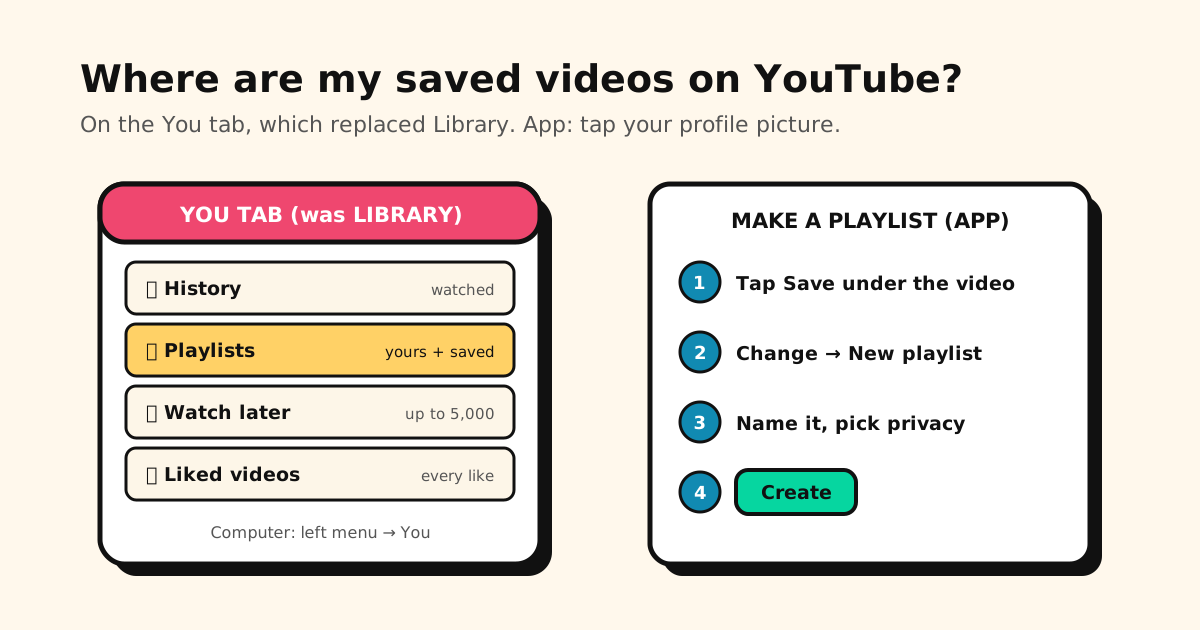
Quick answer: everything you saved on YouTube is on the You tab, which replaced Library. In the app, tap your profile picture; on youtube.com, click You in the left menu. Your playlists are under Playlists, liked videos under Liked videos, and saved-for-later videos under Watch later.
YouTube moved things around more than once, so “my saved videos are gone” is usually “they moved”. Here’s where each kind of save lives now, how to make a playlist, and why one sometimes disappears.
Where YouTube keeps what you saved
| What you saved | Where to find it |
|---|---|
| Your playlists (public, private, unlisted) | You tab → Playlists |
| Playlists from other channels you saved | You tab, with your own playlists |
| Videos you liked | You tab → Liked videos |
| ”For later” | You tab → Watch later (how it works) |
| Videos you watched | You tab → History (full guide) |
| Downloads, purchases, podcasts | You tab, in the Library section |
How to open the You tab:
- YouTube app (iPhone, iPad, Android): tap your profile picture in the bottom bar. YouTube’s help calls the saved part of this page the Library section, with filters for Playlists, Podcasts, Music and more once you have more than five items.
- youtube.com on a computer: open the left menu (the guide) and click You.
YouTube notes that you may not see every section on your You tab. Podcasts, for example, only make sense once you’ve saved one.
How to make a playlist on YouTube
In the app, from a video:
- Below the video, tap Save (on some versions it sits under More). YouTube saves the video to the last playlist you used or to Watch later, and a pop-up says which.
- To pick another playlist, tap Change in the pop-up.
- Tap New playlist and enter a name.
- Choose the privacy setting. Private means only you can see it.
- Tap Create.
In the app, from the You tab: tap your profile picture → in the Playlists section, tap New playlist → pick videos from your watch history → Next → add a title and privacy → Create.
From a Short: tap More → Save to playlist → New playlist, name it, then tap Done.
On a computer: on the video’s page, click More → Save → Create new playlist, enter a name, choose the privacy setting and click Create. To add a video to an existing playlist, click More → Save and tick the playlist.
Save someone else’s playlist
Found a great playlist on a channel? Save the whole thing:
- From the channel: open the channel’s Playlists tab, tap More next to the playlist, then Save.
- While watching: if the video is part of a playlist, tap More → Save.
It then shows up on your You tab next to your own playlists.
Rename, reorder or delete a playlist
- Reorder: open the playlist and drag videos up or down.
- Delete (app): profile picture → open the playlist under Playlists → More → Delete playlist → Delete.
- Delete (computer): open the playlist → More → Delete playlist → Delete.
Deleting a playlist doesn’t delete the videos, only your list of them.
Why a YouTube playlist disappeared
- You’re on another account. Playlists belong to the account (or channel) that made them. Check the account switcher on the You tab.
- It was someone else’s playlist. A saved playlist is a pointer to their list. If they delete it or make it private, it’s gone from your You tab too.
- It was deleted. YouTube doesn’t describe a way to restore a deleted playlist.
- Videos inside it went away. If an uploader removes a video or makes it private, it can’t play from your playlist, even though you saved it.
Size limit: YouTube’s help says a playlist can display a maximum of 5,000 videos, Watch later included.
Checked on November 17, 2026 against YouTube Help: Explore the You tab, Create & manage playlists and Save playlists.
What YouTube playlists can’t do
- No notes. You can’t write down why a video is on the list or which minute matters.
- YouTube only. The TikTok recipe and the article you meant to read live somewhere else.
- Saved playlists aren’t yours. A playlist you saved from a creator can vanish when they change it.
- Thousands of liked videos, one flat list. Liked videos fills up with everything you ever tapped a thumb on.
Keep the videos you’ll want again
For the videos you really want to come back to, save the link outside YouTube too:
- Share → Tuckii. Tap Share under the video and pick Tuckii. The link and its preview land in a library on your device, with no account.
- Add a note like “guitar lesson, the chord change at 3 minutes”. Tuckii searches titles, notes and URLs.
- Collections and tags for workouts, recipes and “watch this weekend”, next to links from every other app. See how to save links from TikTok, Instagram and any app.
Tuckii is free for everyday saving, tags included. An optional Pro upgrade adds sub-collections, sharing a whole collection, backup, and a manual Sync Now through your own iCloud on iPhone, iPad and Mac, or your own Google Drive on Android. It works on Mac too.
Your best videos, next to everything else you saved
Share YouTube videos to Tuckii with a note, keep them in collections, and find any of them in seconds. Free for everyday use, no account needed.
Download Tuckii free →Looking for something you watched but never saved? See where your YouTube history is. Watch later overflowing? Here’s how YouTube’s Watch Later really works. Saving from TikTok too? Save TikTok videos to watch later.