
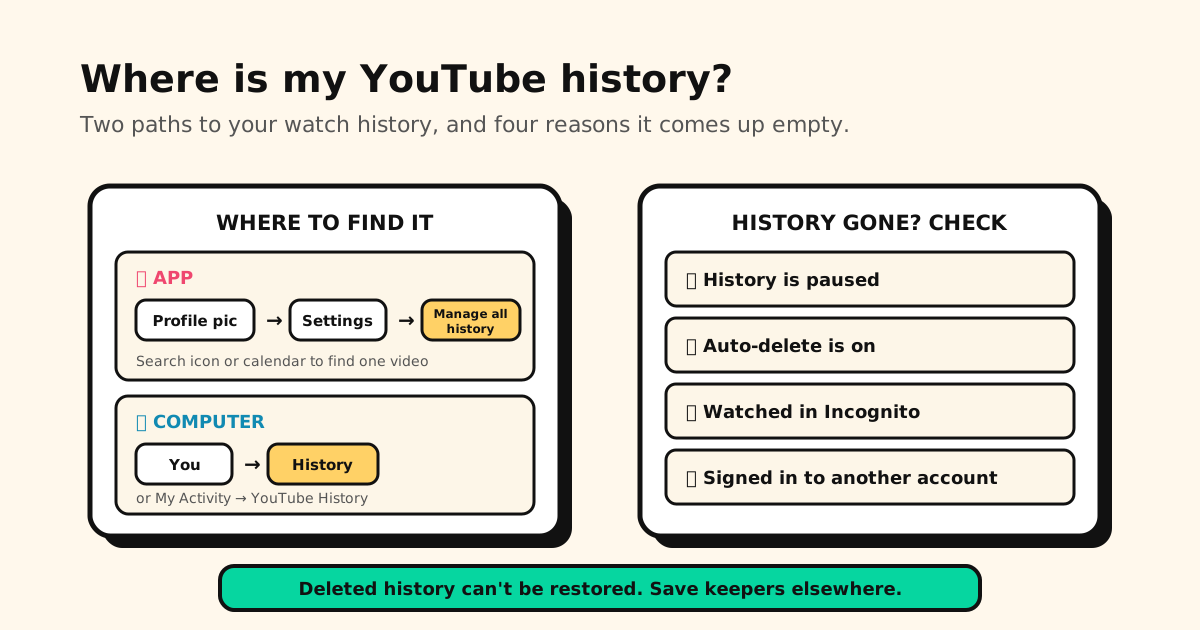
Quick answer: in the YouTube app, tap your profile picture → Settings → Manage all history. On a computer, click History under You in the left menu of youtube.com (or go to My Activity → YouTube History → Manage history). If the list is empty, your history is probably paused, auto-deleted, or on another account.
YouTube’s history is the “I saw that video somewhere” list. Here’s where it is on each device, how to search it, delete it or pause it, and the honest reasons it sometimes comes up empty.
Where to find your YouTube history
| Where | How to open your watch history |
|---|---|
| YouTube app (iPhone, iPad, Android) | Tap your profile picture → Settings → Manage all history |
| youtube.com on a computer | Left menu → under You, click History |
| My Activity (any browser) | YouTube History → Manage history (adds search, dates and Auto-delete) |
| TV or game console | Left Menu → Settings (pause or clear only) |
Your profile picture is the round photo in the app’s bottom bar. Tapping it opens the You tab, where YouTube shows everything you’ve watched and saved, with Settings at the top.
To find one video, open Manage all history and use the search icon, or the calendar icon to jump to a date range. On a computer, the same search sits in My Activity → YouTube History → Manage history.
How to delete YouTube history
- One video: tap the close icon (✕) next to it.
- Several at once: use DELETE and pick a time range. Heads-up: this also deletes your YouTube search history from that range.
- Automatically: in My Activity → YouTube History → Manage history, click Auto-delete, choose a time range, click Next, then Confirm.
- Signed out: in the app, profile picture → Settings → History & privacy → clear watch history. On youtube.com, select History → Clear all watch history.
Deleting is permanent. YouTube’s help explains how to delete and pause history, not how to restore it, and deleted videos stop shaping your recommendations.
How to pause (turn off) YouTube history
- App: profile picture → Settings → Manage all history → Controls tab → unselect Include the YouTube videos you watch.
- Computer: My Activity → Controls tab on the left → Turn off.
- TV: Settings → Pause watch history.
On the same Controls page you choose what history keeps while it’s on: the videos you watch, your searches on YouTube, and voice and audio activity.
What pausing does: anything you watch while history is off is never recorded. And if you have no relevant recent history, YouTube removes features like recommendations on the homepage. That’s the “my Home feed is suddenly blank” moment.
Why your YouTube history disappeared
| What happened | What you see | Can you get it back? |
|---|---|---|
| History is paused | Nothing new since a certain day; Home may be blank | No for those videos. Turn it back on for new ones |
| Auto-delete is on | Older history is missing, recent history is fine | No. Change the time range in My Activity |
| You watched in Incognito | Those videos never appear | No. Incognito activity isn’t linked to your account |
| Different account | A history that “isn’t yours”, or none at all | Yes. Switch to the account you watched on |
| You (or someone) deleted it | Gaps in a date range; recent searches gone too | No |
Incognito in the YouTube app (profile picture → Accounts → Turn on Incognito) acts as if you’re signed out. Your watch and search history aren’t affected, and the session isn’t linked to your account. A black bar at the bottom of the screen tells you it’s on.
Checked on November 17, 2026 against YouTube Help: View, delete, or turn on or off watch history, View or delete your YouTube search history, Browse YouTube while incognito on mobile devices and Explore the You tab.
Watch history vs. search history vs. Watch Later
- Watch history is automatic: every video you watch while it’s on.
- Search history is what you typed into YouTube’s search box. It has its own switch (Include your searches on YouTube).
- Watch Later and your playlists are the things you saved on purpose. They stay until you remove them; history doesn’t promise that.
History is a log, not a place to keep things
History is great for “what was that video from last night?”. It’s a poor home for the videos you actually want to keep:
- It can be paused, auto-deleted or wiped with one DELETE.
- It’s one long list of everything: the tutorial you need next month sits between 40 Shorts.
- There’s nowhere to write why a video mattered.
- It’s YouTube only. The recipe from TikTok and the article from Safari live somewhere else.
Keep the videos worth keeping
When a video is worth seeing again, save its link outside YouTube:
- Share → Tuckii. Tap Share under the video and pick Tuckii. The link and its preview land in a library on your device, with no account.
- Add a note like “the bread recipe, start at the second loaf”. Tuckii searches titles, notes and URLs.
- Collections and tags keep tutorials, music and “watch with friends” apart.
- One library for every app: the YouTube video next to the TikTok and the Instagram reel. See how to save links from any app.
Tuckii is free for everyday saving, tags included. An optional Pro upgrade adds sub-collections, sharing a whole collection, backup, and a manual Sync Now through your own iCloud on iPhone, iPad and Mac, or your own Google Drive on Android. It works on Mac too.
History forgets. Your library doesn’t
Share the videos you want to keep from YouTube to Tuckii, add a note, and find them in seconds. Free for everyday use, no account needed.
Download Tuckii free →Looking for videos you saved on purpose? See where your saved videos and playlists are and how YouTube’s Watch Later really works. Comparing places to keep everything? The best app for saving links lines up the main options.