
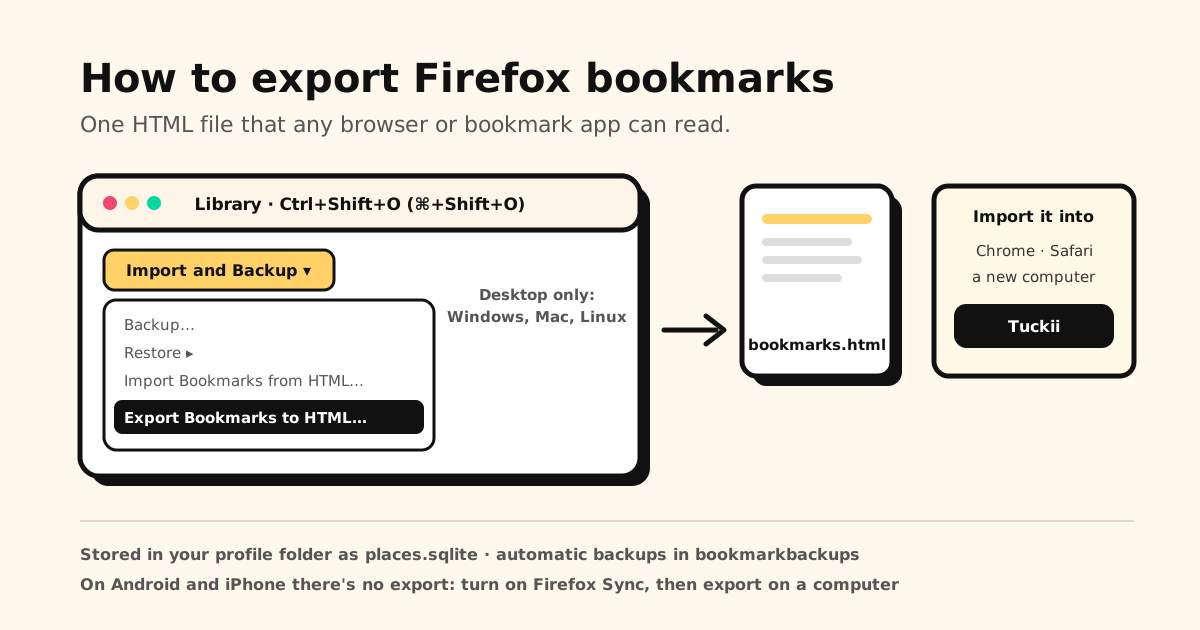
Quick answer: open Firefox’s Library window (Ctrl+Shift+O, or ⌘+Shift+O on a Mac), click Import and Backup and choose Export Bookmarks to HTML…. Save the file, named bookmarks.html, and you can import it into any other browser or bookmark app. On disk, Firefox keeps your bookmarks in places.sqlite inside your profile folder.
Below: the steps on Windows, Mac and Linux, the difference between an export and a backup, exactly where the profile folder is, what to do on a phone, and where the file can go next.
Export Firefox bookmarks at a glance
| I want to… | Do this |
|---|---|
| Export to an HTML file | Library (Ctrl+Shift+O) → Import and Backup → Export Bookmarks to HTML… |
| Back up for Firefox only | Library → Import and Backup → Backup… (a JSON file) |
| Restore a backup | Library → Import and Backup → Restore (replaces current bookmarks) |
| Find the bookmarks file | places.sqlite in your profile folder (☰ → Help and Report → More Troubleshooting Information) |
| Export on Android or iPhone | No button: turn on Firefox Sync, then export on a computer |
| Firefox to Chrome | Chrome → ⋮ → Bookmarks and lists → Import bookmarks and settings |
| Firefox to Safari (Mac) | Safari → File → Import From Browser → Firefox |
| Firefox to Tuckii | Settings → Backup & Restore → Import Bookmarks |
How to export Firefox bookmarks to an HTML file
This works the same on Windows, Mac and Linux:
- Click the menu button ☰, click Bookmarks, then click Manage bookmarks at the bottom. The Library window opens. (Shortcut: Ctrl+Shift+O, or ⌘+Shift+O on a Mac.)
- In the Library’s toolbar, click Import and Backup and choose Export Bookmarks to HTML….
- In the Export Bookmarks File window, choose where to save the file. Firefox names it bookmarks.html by default; the desktop is an easy spot to find again.
- Click Save, then close the Library window.
That one file holds your bookmarks and folders, ready to import into another browser or onto a new computer. Mozilla suggests updating Firefox first (☰ → Help and Report → About Firefox) if the menus don’t match.
Export or backup: which one do you need?
The Import and Backup menu offers both, and they’re for different jobs:
| Export (HTML) | Backup (JSON) | |
|---|---|---|
| Menu item | Export Bookmarks to HTML… | Backup… |
| File | bookmarks.html | bookmarks-[date].json |
| Use it for | Other browsers, other computers, bookmark apps | Restoring bookmarks in Firefox |
| When you load it | Adds to what’s there | Restore replaces your current bookmarks |
Moving to Chrome, Safari or an app? Export. Want a safety net for Firefox itself? Back up.
How to back up and restore Firefox bookmarks
Back up:
- Open the Library (Ctrl+Shift+O / ⌘+Shift+O) and make sure All Bookmarks is selected on the left.
- Click Import and Backup → Backup….
- Save the file, named bookmarks-”date”.json by default.
Restore:
- Open the Library and click Import and Backup → Restore.
- Pick a dated entry (Firefox’s automatic backups) or Choose File… for a backup you saved.
- Confirm.
Restoring overwrites your current bookmarks with the ones in the backup. To merge old and new instead, use Import and Backup → Import Bookmarks from HTML… with an HTML export.
Deleted something by accident? Firefox keeps the last 15 automatic backups, so it’s the most forgiving browser here. Here’s the full guide to recovering deleted bookmarks in Chrome, Safari and Firefox.
Where are Firefox bookmarks stored?
Firefox keeps everything you change (bookmarks, passwords, settings) in a profile folder, separate from the Firefox program. Inside it:
places.sqlite: all your bookmarks, plus your browsing history and the list of files you’ve downloaded.bookmarkbackups: the folder with Firefox’s bookmark backup files.favicons.sqlite: the little site icons shown next to your bookmarks.
places.sqlite is Firefox’s own database, not a file you can hand to another browser. To move your
bookmarks somewhere else, export the HTML file above.
Open your profile folder from Firefox
- Windows and Linux: click ☰ → Help and Report → More Troubleshooting Information (older
versions say Help instead of Help and Report). Mac: choose Help → More Troubleshooting
Information in the menu bar. (You can also type
about:supportin the address bar.) - Under Application Basics, next to Profile Folder, click Open Folder (Show in Finder on a Mac, Open Directory on Linux).
Find it without opening Firefox
- Windows: the default location is
C:\Users\<your user name>\AppData\Roaming\Mozilla\Firefox\Profiles\. Windows hides AppData, so press Windows key + R, type%APPDATA%\Mozilla\Firefox\Profiles\and click OK. Firefox from the Microsoft Store keeps its profiles elsewhere, under%LOCALAPPDATA%\Packages\. - Mac: in Finder, open the Go menu, hold the Option key and select Library. Then open Application Support → Firefox → Profiles.
- Linux: in your home folder, show hidden files and open .mozilla → firefox.
If you only have one profile, its folder has “default” in the name.
Firefox on Android and iPhone: no export button
Firefox’s phone apps can’t export bookmarks to a file. Mozilla’s answer is Firefox Sync: turn it on in Firefox on your phone and on a computer, and your phone’s bookmarks show up on the computer, where you can export them as above.
Going the other way, Firefox for Android is rolling out Import from file: ⋮ → Bookmarks → ⋮ → Import from file, then pick an HTML file. Mozilla says it may not be available for everyone yet. Moving to a new phone altogether? Here’s how to transfer bookmarks to a new phone.
Where the HTML file can go
- Chrome (computer): More ⋮ → Bookmarks and lists → Import bookmarks and settings → Choose file, pick the file, then Open and Done. If Chrome had no bookmarks yet, they land on the bookmarks bar; otherwise in the Other bookmarks folder. More in how to export and import Chrome bookmarks.
- Safari on a Mac: with Firefox installed, choose File → Import From Browser → Firefox, select what you want and click Import. No Firefox on that Mac? Use File → Import Browsing Data from File or Folder and pick the HTML file.
- Safari on iPhone: Settings → Apps → Safari → Import → Choose File, then Import to Safari. Apple recommends deleting the file afterwards.
- Another Firefox: Import and Backup → Import Bookmarks from HTML… adds the bookmarks to the ones already there.
Move your Firefox bookmarks into Tuckii
Tuckii reads the same HTML file Firefox exports:
- Export bookmarks.html from Firefox on your computer (above).
- Get it onto the iPhone, iPad or Android phone you use Tuckii on: AirDrop, a cloud drive, or an email to yourself.
- In Tuckii, open Settings → Backup & Restore → Import Bookmarks and pick the file.
Your links arrive in a new collection, and ones already in Tuckii are skipped. The free plan imports a starter batch; Pro imports the whole file.
An export is a snapshot, not a home
Exporting is the right move: a file you own beats trusting one browser forever. But the file is out of date the moment you save your next link, and on a phone most links don’t come from a browser anyway. They come from TikTok, Instagram, Reddit or a friend’s message.
That’s the job Tuckii does:
- Save from any app with Share → Tuckii, browsers included.
- Collections, tags and instant search. Free for everyday use, tags included.
- On your device, no account. With Pro, its own backup file you keep, plus Sync Now through your own iCloud on iPhone, iPad and Mac, or your own Google Drive across Android devices.
- Works on iPhone, iPad, Mac and Android.
Bring your Firefox bookmarks with you
Import your bookmarks.html into Tuckii, then save new links from any app into one private, searchable library on your device. Free for everyday use, no account.
Download Tuckii free →Using Chrome as well? See where Chrome keeps its bookmarks and how to export them. Saving a whole research session first? Here’s how to bookmark all tabs at once.