
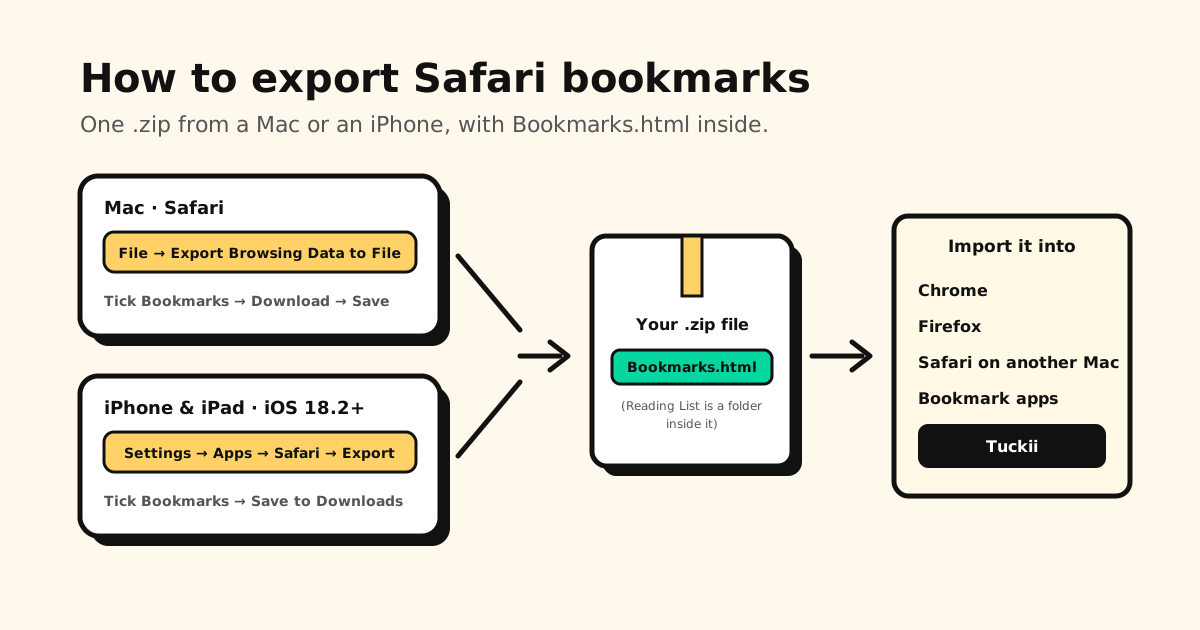
Quick answer: on a Mac, open Safari and choose File → Export Browsing Data to File, select Bookmarks and click Download. On iPhone or iPad (iOS 18.2 or later), go to Settings → Apps → Safari → Export, select Bookmarks and tap Save to Downloads. Either way Safari saves a .zip file, and your bookmarks are the Bookmarks.html file inside it.
Below: the steps on each device, what’s in the .zip, the older Mac command, where Safari keeps bookmarks, and where the file can go next.
Export Safari bookmarks at a glance
| I want to… | Do this |
|---|---|
| Export on a Mac | Safari → File → Export Browsing Data to File → Bookmarks → Download |
| Export on iPhone or iPad | Settings → Apps → Safari → Export → Bookmarks → Save to Downloads |
| Find the bookmarks file | Bookmarks.html inside the exported .zip |
| Unzip on iPhone | Files app → tap the .zip |
| Safari to Chrome | Chrome → ⋮ → Bookmarks and lists → Import bookmarks and settings |
| Safari to Firefox | Library → Import and Backup → Import Bookmarks from HTML… |
| Safari to Tuckii | Settings → Backup & Restore → Import Bookmarks |
How to export Safari bookmarks on a Mac
- Open Safari and choose File → Export Browsing Data to File.
- Select the data to export. For bookmarks only, select Bookmarks and leave the rest unticked.
- If you use Safari profiles, pick a profile or All Profiles. Bookmarks are the same in every profile; history and extensions are per profile.
- Click Download.
- Enter a name, choose a location (the desktop is easy to find again) and click Save.
Safari saves a .zip file. Double-click it in Finder to unzip it, and Bookmarks.html is your bookmarks file. Your Reading List comes along too: Apple’s developer documentation describes it as a folder inside the bookmarks file.
Export only what you need. The same window can export your passwords and credit cards, and Apple warns that the exported data isn’t encrypted: anyone who gets the file can read it. Tick Bookmarks only, and delete the file once you’ve imported it.
On an older Mac: File → Export → Bookmarks
In Safari 17 and earlier (macOS Sonoma and before), the command was File → Export → Bookmarks, and it saved a single file called Safari Bookmarks.html, with no .zip. Apple’s current Safari guide documents Export Browsing Data to File instead. If your Mac still shows the older command, it does the same job for bookmarks.
How to export Safari bookmarks on iPhone or iPad
Since iOS 18.2, Safari on iPhone can export to a file:
- Open the Settings app and tap Apps, then Safari.
- Below History and Website Data, tap Export.
- Select Bookmarks (and nothing else, unless you need it). With profiles, choose one or All Profiles.
- Tap Save to Downloads, then Done.
The .zip lands in your Downloads folder. To unzip it, open the Files app, find the .zip and tap it: iOS creates a folder next to it with Bookmarks.html inside. The steps on iPad are the same.
On a version before iOS 18.2? There’s no export button. Turn on Safari in iCloud (Settings → your name → iCloud), and your bookmarks reach a Mac signed in to the same Apple Account, where you can export them. On a Windows PC, iCloud for Windows can bring your Safari bookmarks into a browser on the PC.
What’s inside the .zip
| File | What it holds | Who reads it |
|---|---|---|
| Bookmarks.html | Bookmarks and folders, plus your Reading List as a folder | Chrome, Firefox, Safari, most bookmark apps |
| Passwords.csv | Saved passwords (only if you ticked Passwords) | Password managers, other browsers |
| History.json | Browsing history, one file per profile | Other browsers |
| PaymentCards.json, Extensions.json | Cards and the list of extensions, if ticked | Other browsers |
File names can be translated if your Mac or iPhone uses another language. The bookmarks file uses the standard bookmarks HTML format (the “Netscape” format), the same kind of file Chrome and Firefox export.
Where does Safari keep your bookmarks?
- In Safari on each device: behind the book icon (the Bookmarks tab, next to Reading List).
- In iCloud: when Safari is turned on in iCloud settings, iCloud keeps a copy and syncs it to your other Apple devices. Bookmarks deleted in the last 30 days can be restored at icloud.com/recovery.
- On a Mac’s disk: Safari’s own copy is Bookmarks.plist in the Safari folder of your user Library. Apple doesn’t document it and no other browser reads it, so don’t edit it; export instead.
Sync acting up before you export? Fix that first: Safari bookmarks not syncing.
Where the file can go
- Chrome (computer): More ⋮ → Bookmarks and lists → Import bookmarks and settings → Choose file, pick Bookmarks.html, then Open and Done. Import while signed in to your Google Account, and they show up in Chrome on your phone once you sign in there with the same account. More in how to export and import Chrome bookmarks.
- Firefox: open the Library (Ctrl+Shift+O, or ⌘+Shift+O on a Mac), then Import and Backup → Import Bookmarks from HTML….
- Safari on another Mac: File → Import Browsing Data from File or Folder → Choose File or Folder, then Import.
- Safari on another iPhone: Settings → Apps → Safari → Import → Choose File (the .zip works), then Import to Safari.
iPhone to Android? Chrome on Android can’t import a bookmarks file. Import it into Chrome on a computer while signed in to the Google Account you use on the Android phone, and the bookmarks show up in Chrome there. The whole move is in how to transfer bookmarks to a new phone.
Move your Safari bookmarks into Tuckii
Tuckii reads the same Bookmarks.html file, on iPhone, iPad and Android:
- Export from Safari (above). On iPhone, the .zip is already in Downloads.
- Tap the .zip in the Files app to unzip it. Exported on a Mac? AirDrop Bookmarks.html to your iPhone, or send it to your Android phone through a cloud drive or an email to yourself.
- In Tuckii, open Settings → Backup & Restore → Import Bookmarks and pick Bookmarks.html.
Your links arrive in a new collection, and ones already in Tuckii are skipped. The free plan imports a starter batch; Pro imports the whole file.
An export is a snapshot, not a home
Exporting gives you a copy you own, which beats trusting one browser forever. But the file is out of date the moment you save your next link, and on a phone most links don’t come from Safari anyway: a TikTok recipe, an Instagram place, a link in a group chat.
That’s the job Tuckii does:
- Save from any app with Share → Tuckii, Safari included.
- Collections, tags and instant search. Free for everyday use, tags included.
- On your device, no account. With Pro, a backup file you keep, plus Sync Now through your own iCloud on iPhone, iPad and Mac, or your own Google Drive across Android devices.
- Works on iPhone, iPad, Mac and Android.
Bring your Safari bookmarks with you
Import your Bookmarks.html into Tuckii, then save new links from any app into one private, searchable library on your device. Free for everyday use, no account.
Download Tuckii free →Tidying up before you export? Here’s how to organize Safari bookmarks on iPhone, iPad and Mac. Lost some already? See how to recover deleted bookmarks.