
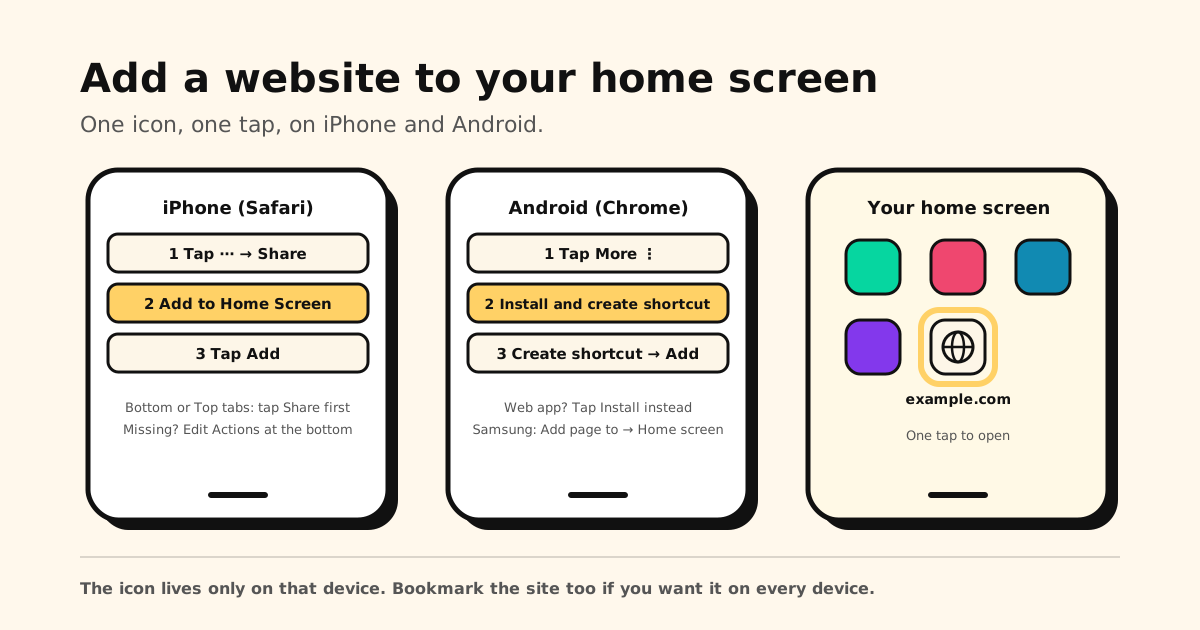
Quick answer: on iPhone, open the site in Safari and tap ⋯ → Share → Add to Home Screen → Add. On Android, open it in Chrome and tap More ⋮ → Install and create shortcut → Create shortcut → Add. The site’s icon then sits next to your apps, on that one device.
Below: the exact steps for iPhone, iPad, Chrome on iPhone, Android and Samsung phones, what to do when the option is missing, and how to remove an icon you don’t want any more.
Add a website to your home screen at a glance
| Where you are | Add the site | Good to know |
|---|---|---|
| Safari on iPhone (iOS 26 and 27) | ⋯ → Share → Add to Home Screen → Add | Bottom or Top tab layout: tap Share first |
| Safari on iPhone (iOS 18 and earlier) | Share in the toolbar → Add to Home Screen → Add | Missing? Edit Actions at the bottom of the list |
| Safari on iPad | Share → View More → Add to Home Screen → Add | Turn on Open as Web App to use it like an app |
| Chrome on iPhone or iPad | Share (right of the address bar) → Add to Home Screen → Add | Opens the site’s web app if it has one |
| Chrome on Android | More ⋮ → Install and create shortcut → Create shortcut → Add | Web app? Install adds it like an app |
| Samsung Internet | Tools menu → Add page to → Home screen | The menu is ☰ or ⋮, depending on your version |
| Dozens of links you’ll want “someday” | Share → Tuckii | One searchable library instead of a crowded home screen |
How to add a website to your home screen on iPhone
On iOS 26 and iOS 27, with Safari’s Compact tab layout:
- Open the Safari app and go to the website.
- Tap the ⋯ button next to the address bar, then tap Share. (Apple calls ⋯ the More button on iOS 26 and the Page Menu button on iOS 27.) Using the Bottom or Top tab layout? Tap the Share button instead.
- Scroll down the list of options and tap Add to Home Screen.
- Turn on Open as Web App if you want the site to open like an app (more on that below).
- Tap Add.
On iOS 18 and earlier, tap the Share button in the toolbar, scroll down, tap Add to Home Screen, then Add.
The icon appears only on the iPhone where you add it. Want it on your iPad too? Repeat the steps there.
Don’t see “Add to Home Screen”?
- It’s hidden in the share list. Scroll to the very bottom, tap Edit Actions, and add Add to Home Screen. It stays in the list from then on.
- The page is open inside another app. A link you tap in Instagram, TikTok or a chat app usually opens in that app’s own viewer, not in Safari. Look for the option to open it in your browser, then follow the steps above.
- You’re in Chrome, not Safari. Chrome has its own route: see Chrome on iPhone or iPad below.
What “Open as Web App” does
It’s a switch on the Add to Home Screen screen. Turned on, the icon opens the website just like an app: it can send you notifications (only if you allow them) and you quit it the same way you quit any app. Leave it off if you simply want a shortcut to the page.
How to add a website to the home screen on iPad
- Open Safari and go to the website.
- Tap the Share button, tap View More, then tap Add to Home Screen.
- Turn on Open as Web App if you want it to work like an app, then tap Add.
Like on iPhone, the icon lives only on that iPad.
Chrome on iPhone or iPad
- Open Chrome and go to the website.
- To the right of the address bar, tap Share, then Add to Home Screen.
- Edit the name if you like and tap Add.
If the site has a web app, the shortcut opens it. If it doesn’t, the shortcut opens the page in your default browser.
How to add a website to your home screen on Android
In Chrome:
- Open the website.
- Tap More ⋮ to the right of the address bar, then Install and create shortcut.
- Tap Create shortcut, keep or change the name, and tap Add.
Some sites are built as web apps. For those, the same menu offers Install: follow the on-screen steps and the site is added like an app, with extras some web apps include, such as offline use or notifications. Google’s tip: a shortcut with the Chrome logo on it opens in Chrome.
Samsung Internet (Samsung Browser)
Many Samsung phones use Samsung’s own browser, renamed Samsung Browser in 2026:
- Open the page in Samsung Internet.
- Tap the Tools menu: ☰ in the bottom bar, or ⋮, depending on your version.
- Tap Add page to → Home screen and confirm.
Labels shift a little between versions. On sites built as web apps, Samsung’s browser can also offer to add the site to your home screen on its own.
How to remove a website from your home screen
- iPhone or iPad: touch and hold the icon, then tap Delete Bookmark.
- Android: touch and hold the icon, drag it up to Remove and lift your finger. A site you installed as a web app is removed like an app: Settings → Apps → See all apps, tap it, then Uninstall.
Home screen icon, bookmark or saved link?
| Way to save | Best for | On your other devices? |
|---|---|---|
| Home Screen icon | The few sites you open every day | No, that phone or tablet only |
| Bookmark | Sites you’ll come back to | Yes, in the same browser when it’s signed in (iCloud for Safari, Google Account for Chrome) |
| Reading List | An article you’ll read once | Yes, in Safari with iCloud |
| Tuckii | Links from any app, sorted and searchable | Stored on your device; with Pro, Sync Now through your own iCloud or Google Drive |
Bookmarking is the better fit for most sites: here’s how to bookmark a website in every browser. Safari’s Reading List is a different shelf again: where it lives and how it works.
When your home screen starts filling up
A home screen holds a handful of sites before it turns into clutter. And on a phone, most of the links worth keeping don’t come from a browser at all: a recipe on TikTok, a café on Instagram, a thread a friend texts you. They don’t need an icon, they need a place.
That’s what Tuckii is for:
- Share → Tuckii from any app on iPhone or Android, Safari and Chrome included. The title and preview come along.
- Collections, tags and instant search across titles, notes and URLs. Free for everyday use, tags included.
- No account. Your library is stored on your device.
- Works on iPhone, iPad and Mac, and on Android. With Pro, one tap on Sync Now puts your library on your other devices through your own iCloud, or across your Android devices through your own Google Drive.
Keep the home screen for your top sites
Add your daily sites as icons, and save every other link with Share → Tuckii: one private, searchable library on your device. Free for everyday use, no account.
Download Tuckii free →More how-tos: bookmark a website · bookmark on Android · Safari Reading List · save links from TikTok, Instagram and any app.