
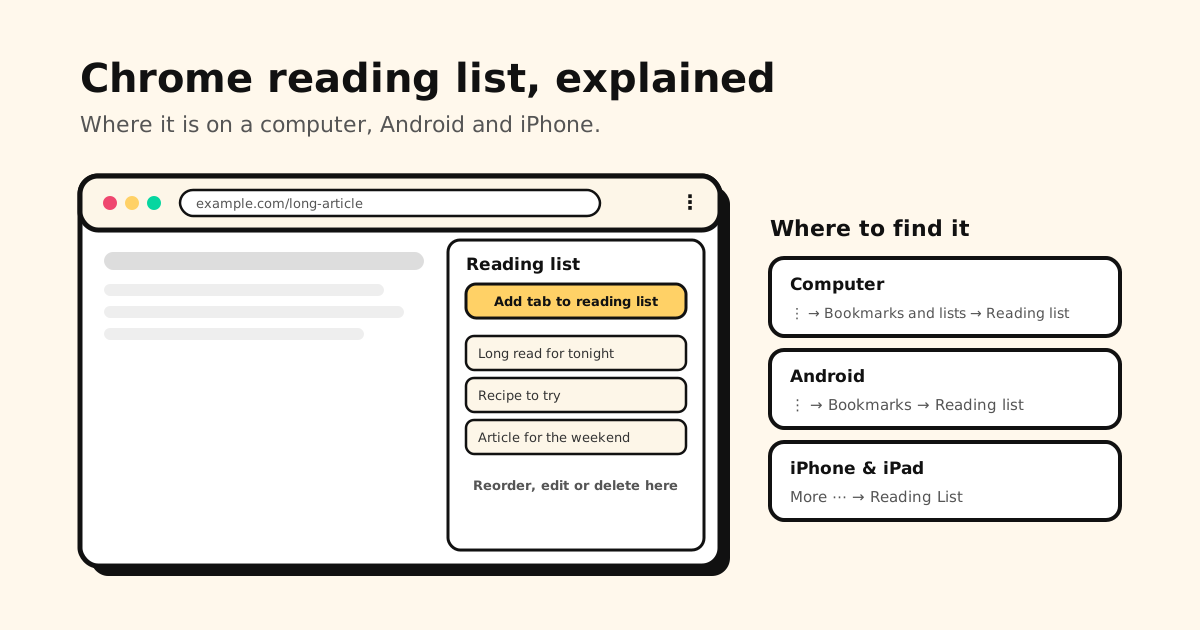
Quick answer: on a computer, select More ⋮ → Bookmarks and lists → Reading list → Show reading list, and Chrome opens it in the side panel. On Android, it’s a folder in your bookmarks: More → Bookmarks → Reading list. On iPhone and iPad, tap More → Reading List.
Chrome’s reading list hasn’t gone anywhere in 2026; it has just moved out of sight. Here’s where it is on each device, how to add and delete pages, how it syncs, and what it can’t do.
Chrome reading list at a glance
| I want to… | Computer | Android | iPhone & iPad |
|---|---|---|---|
| Open it | ⋮ → Bookmarks and lists → Reading list → Show reading list | ⋮ → Bookmarks → Reading list | More → Reading List |
| Add a page | ⋮ → Bookmarks and lists → Reading list → Add tab to reading list | ⋮ → ☆ star, folder Reading list | More → Add to Reading List |
| Add from another app | — | — | Share → Chrome → Add to Reading List |
| Delete a page | In the side panel | — | Swipe left → Delete |
| Sync it | Sign in to Chrome with the same Google Account on each device | ||
Where is the reading list in Chrome on a computer?
On Windows, Mac, Linux and ChromeOS the reading list lives in Chrome’s side panel:
- Select More ⋮ at the top right.
- Choose Bookmarks and lists → Reading list → Show reading list.
- The reading list opens in the side panel, next to the page you’re on. From there you can open, reorder, edit and delete items.
Opening it often? With the reading list showing, select Pin to toolbar next to its name. Its icon then sits in the toolbar, and one click opens it. To remove the icon, right-click it and choose Unpin. (Settings → Appearance → Side panel picks whether the panel opens on the left or the right.)
Add a page on a computer
- From the menu: on the page, select More ⋮ → Bookmarks and lists → Reading list → Add tab to reading list.
- From the tab strip: right-click the tab and choose Add tab to reading list.
Chrome briefly confirms the save, with a shortcut to the side panel.
Where is the reading list in Chrome on Android?
On Android, the reading list is a folder inside your bookmarks:
- Open it: tap More ⋮ → Bookmarks → Reading list.
- Add a page: tap More ⋮ and the star to bookmark the page. To put it in the reading list, tap More ⋮ → star again, choose Folder and pick Reading list.
One quirk worth knowing: once you save a page to the reading list, Chrome keeps saving new bookmarks to the last folder you used. If your bookmarks suddenly all land in the reading list (or the other way round), tap Edit at the bottom when you save and change the folder.
Can’t find your regular bookmarks on Android either? Here’s where Android keeps bookmarks.
Where is the reading list in Chrome on iPhone and iPad?
- Open it: tap More (the ⋯ button) → Reading List.
- Add the page you’re on: tap More → Add to Reading List.
- Add from another app: tap Share → Chrome → Add to Reading List.
- Delete a page: swipe left on it and tap Delete.
You need to be online to save a page to your Reading List on iPhone. Chrome on iPhone can also bring over your Safari Reading List when you import your Safari data into Chrome.
Does the Chrome reading list sync?
Yes. Sign in to Chrome with the same Google Account on your computer and phone, and the reading list follows you. Google lists Reading list as its own item, next to Bookmarks, in the info Chrome saves to your Google Account. Since 2025, signing in to Chrome is enough; there’s no separate “turn on sync” step.
If it stops showing up on your other devices, the checks are the same as for bookmarks: same account, not paused, the right profile. Here’s the full list: Chrome bookmarks not syncing.
Can you read it offline?
Not by default. Google’s own advice is to download pages you want offline:
- Computer: on the page, More ⋮ → Cast, save, and share → Save page as, then open the saved file later.
- Android: on the page, More ⋮ → Download. Downloaded pages are under More ⋮ → Downloads.
The reading list itself saves the link, so you’ll want a connection when you open it.
Reading list vs. bookmarks vs. Safari’s Reading List
| Chrome reading list | Chrome bookmarks | Safari Reading List | |
|---|---|---|---|
| Made for | Pages to read once, soon | Pages you come back to | Pages to read once, soon |
| Folders | No | Yes | No |
| Export | No button | HTML file | Included in Safari’s bookmarks export |
| Offline | Download pages yourself | No | Optional automatic offline copies |
| Works in | Chrome only | Chrome only | Safari only |
Use the reading list as a short queue and bookmarks for anything you want to keep. On an iPhone, Safari has its own version: here’s how Safari’s Reading List works. Saving several tabs at once instead? See how to bookmark all tabs.
What the reading list can’t do
- No export. Google’s help pages offer no export for the reading list, so anything you’d miss shouldn’t live only there. Bookmarks, by contrast, export to an HTML file.
- No folders or tags. It’s one list, newest first.
- Chrome only. It holds pages you saved in Chrome, not the TikTok, Instagram or YouTube links you saved inside apps, and not anything from Safari or Samsung Internet.
If you mostly want a clean place to read articles later, a dedicated reader app does that better: here are the best read-it-later apps of 2026, compared by how you read.
Save it for later from any app: Tuckii
Most of what people mean to “read later” on a phone doesn’t start in Chrome. It’s a link in a group chat, a TikTok recipe, a Reddit thread. Tuckii isn’t a reader app; it’s where you save it for later, from anywhere:
- Save from any app with Share → Tuckii: Chrome, Safari, TikTok, Instagram, YouTube, Messages.
- Collections, tags and instant search, so it doesn’t turn into another endless list. Free for everyday use, tags included.
- On your device, no account. With Pro, a backup file you keep, plus Sync Now through your own iCloud on iPhone, iPad and Mac, or your own Google Drive across Android devices.
- Bring your Chrome bookmarks along. Export them to an HTML file and import it under Settings → Backup & Restore → Import Bookmarks. The free plan imports a starter batch; Pro imports the whole file.
One list for links from Chrome and every app
Save from any app in one tap, sort it into collections, and find it again in seconds. On your device, no account. Free for everyday use.
Download Tuckii free →Keeping more than a reading queue in Chrome? Here’s how to organize Chrome bookmarks and how to export them.